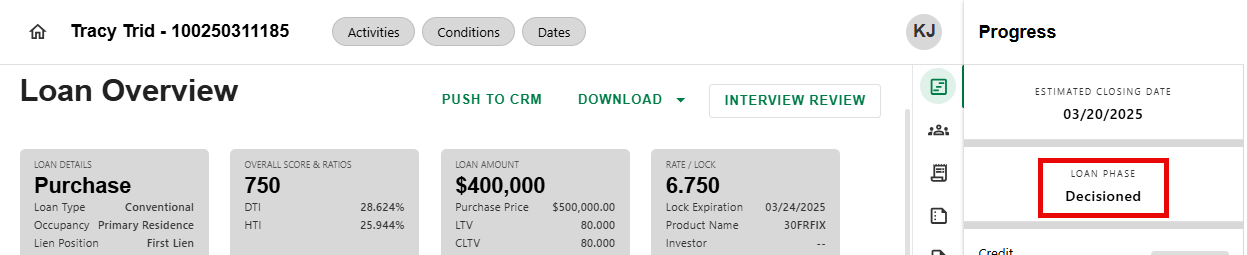
When the loan is in the Decisioned phase, the Funding Progress Item will become visible.
Instructions to View Funding Information
Step 1: Review Loan Phase
- Navigate to the Progress Item Sidesheet to review the Loan Phase.
Step 2: Navigate to Funding Progress Item
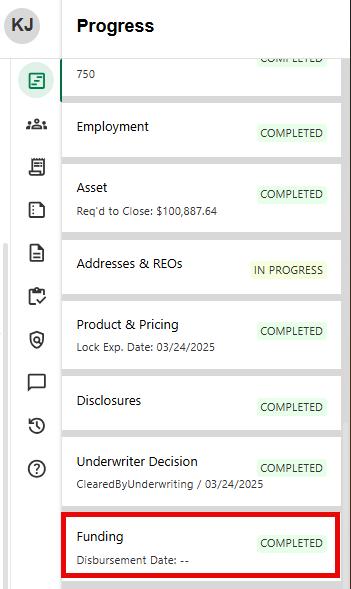
- When the loan is in the Decisioned phase, the Funding Progress Item becomes visible. Click on the Progress Item to display the details screen.
Step 3: Review Loan Phase
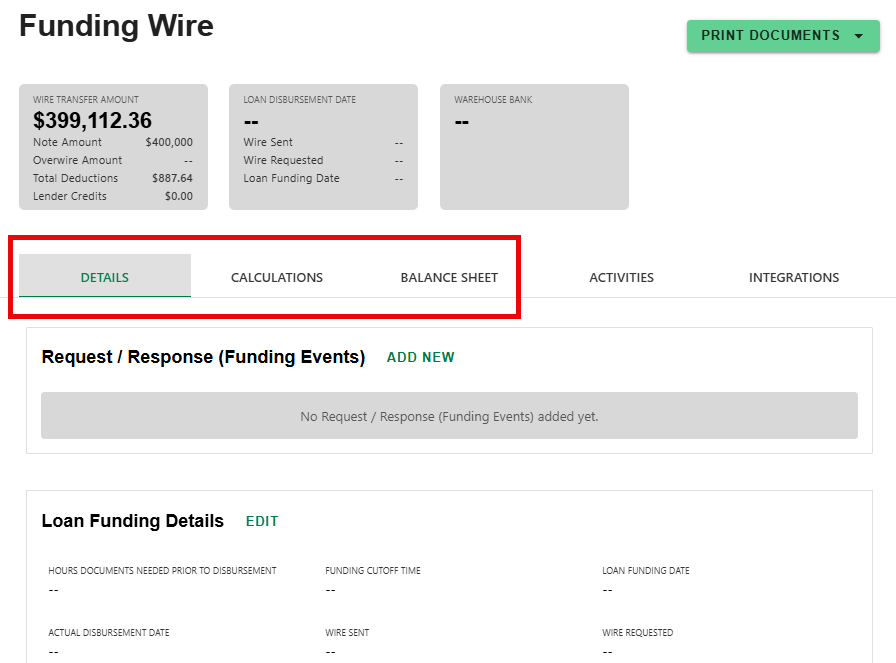
- Navigate throug the Funding Tabs on the Funding Progress Item screen to complete the Funding Request event and prepare the Net Funding Worksheet:
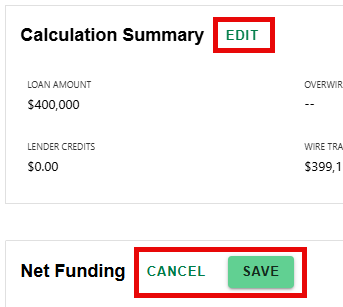
- Click 'EDIT' to update sections. Once changes are made, click 'SAVE' to apply changes or 'DISCARD' to cancel.
NOTE - the 'BALANCE SHEET' tab is not editable. It is a summary of the calculations.
Step 4: Print Funding Worksheet
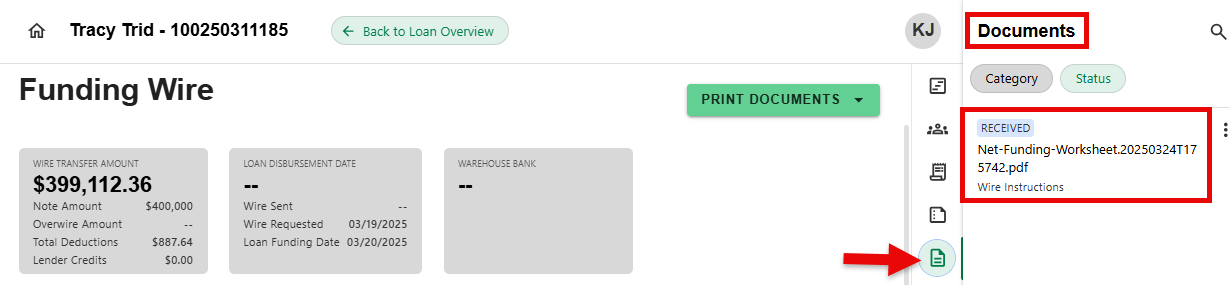
- Once funding details are complete, click the 'PRINT DOCUMENTS' button to generate the 'Net Funding Worksheet.'

- The 'Net Funding Worksheet' can then be found in the Documents sidesheet.
The tracking section for Funding dates can be found by clicking on the 'DATES' tab on the Loan Overview screen.

Was this article helpful?
That’s Great!
Thank you for your feedback
Sorry! We couldn't be helpful
Thank you for your feedback
Feedback sent
We appreciate your effort and will try to fix the article