How to Manage Purchase Contract Contingency Dates
1. In this video, we’ll walk through how to manage purchase contract contingency dates in Charlie.
Start by navigating to the Loan Overview Progress Item screen to view the deadlines in one convenient place.

2. For purchase transactions, a Purchase Info tab dynamically appears.
Click this tab to access all purchase-related details.

3. Scroll down to the Contingency Dates section.
Here you’ll see any dates that were automatically extracted when the purchase contract was uploaded.
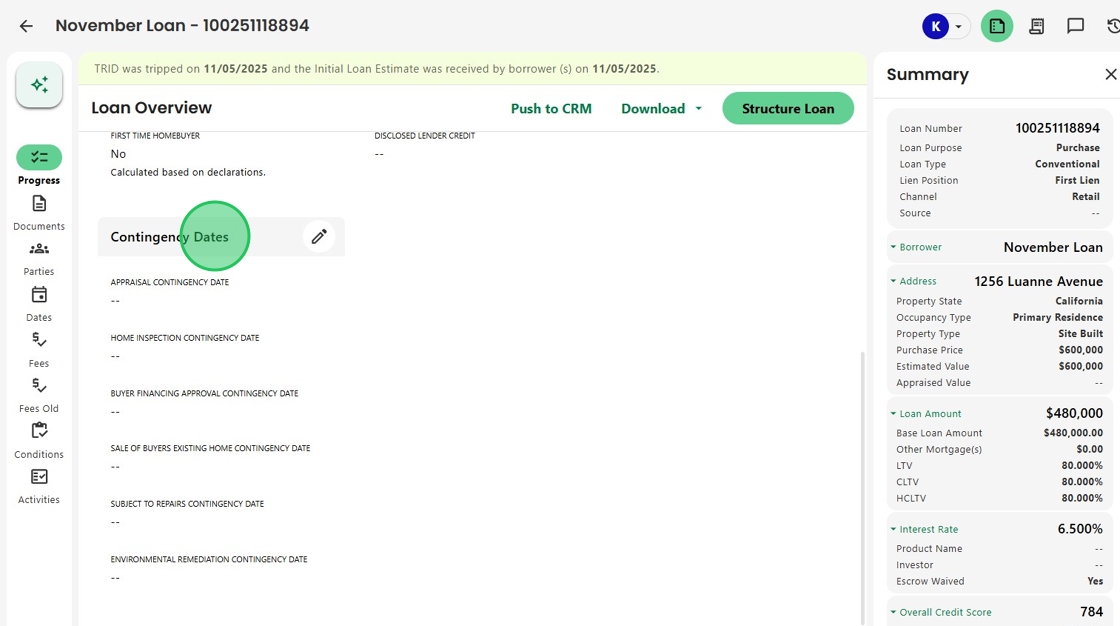
4. To make updates, click the pencil icon to open the editable fields.

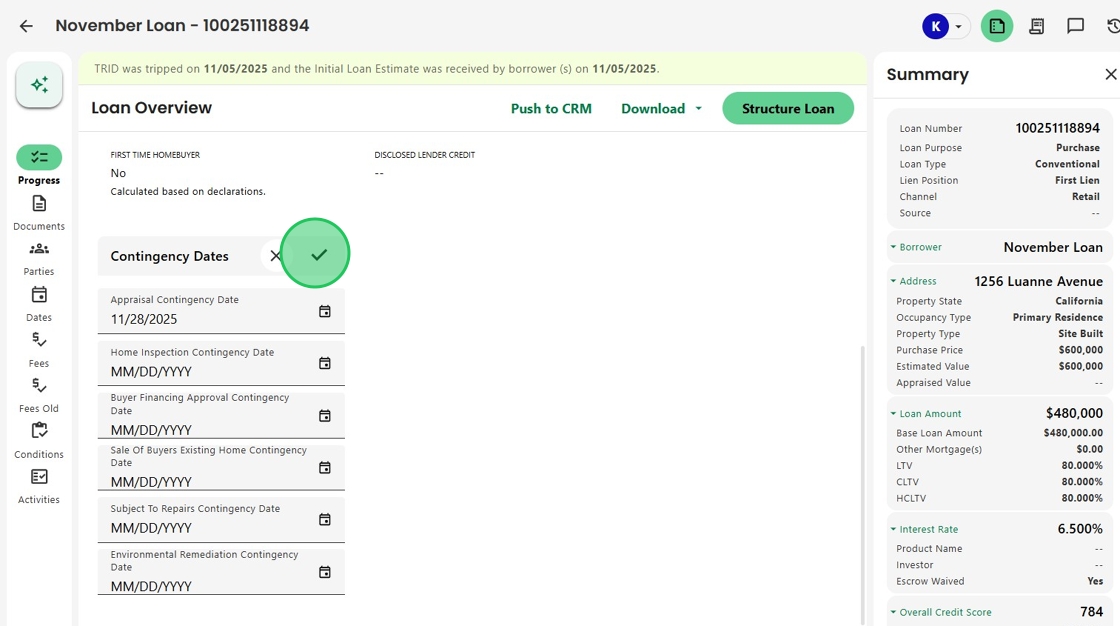
5. Use the date selector to enter or modify each contingency date as needed.

6. When finished, click the check mark to save your changes.
These dates can be used to automatically trigger upcoming activities, ensuring your borrower is meeting all contract deadlines.
Was this article helpful?
That’s Great!
Thank you for your feedback
Sorry! We couldn't be helpful
Thank you for your feedback
Feedback sent
We appreciate your effort and will try to fix the article