How to Order an Appraisal
1. In this guide, we’ll walk through how to complete an Order Appraisal Activity in Charlie.
This process ensures the appraisal order is properly submitted, tracked, and completed within your workflow.
Start by selecting the Appraisal Order activity from your Assigned Activity List.

2. You can also access the Appraisal Order button directly from the Appraisal Progress Item screen.

3. Begin by confirming that the borrower has provided Intent to Proceed.
Once confirmed, continue through the Review Checklist.

4. After completing all review steps, select Order Appraisal from the left-side menu.
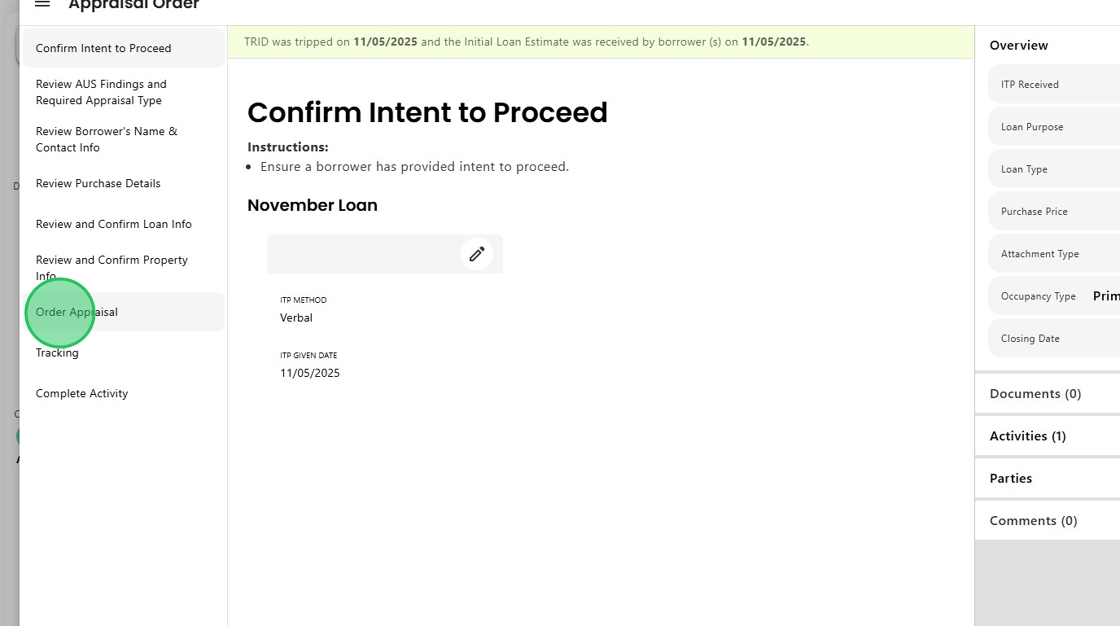
5. Then, click the Order Appraisal button to begin your order.

6. Select the AMC Vendor from the dropdown list.

7. Next, choose the Appraisal Type appropriate for the loan.

8. Click Order Appraisal to submit.

9. If any information is missing, Charlie will prompt you to complete the required fields.

10. Once all fields are complete, click the Finish button, and the appraisal order will automatically be submitted to the AMC.
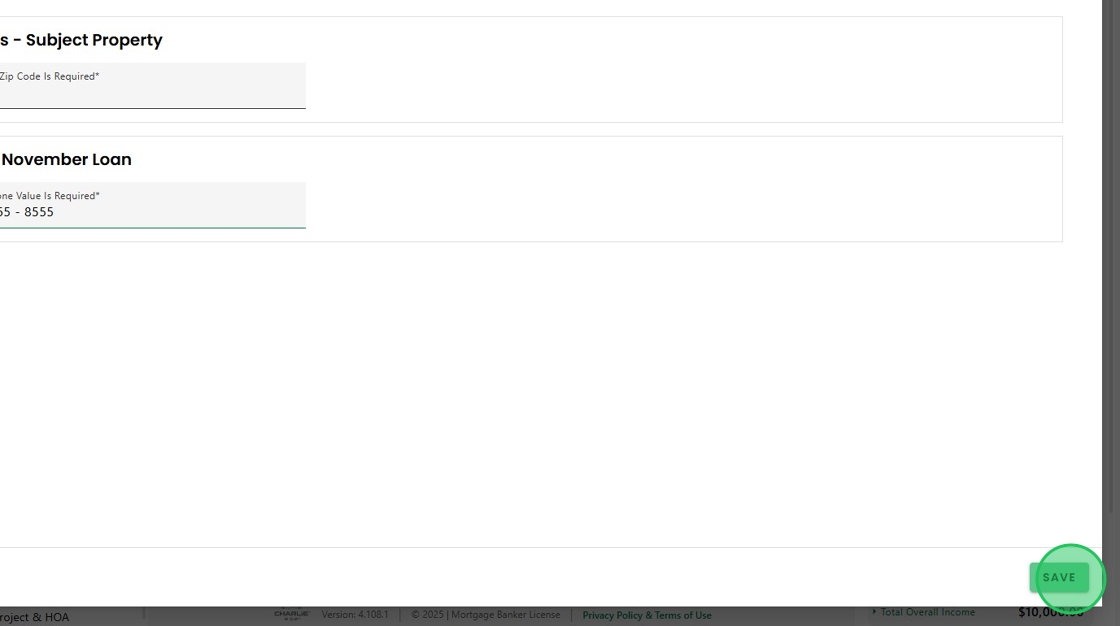
11. A confirmation message will appear once the order is successfully sent.

12. Verify that the Order Date on the Tracking screen has automatically populated.

13. If completion isn’t automated, proceed to the Complete Activity screen to update the Status to Complete and click Finish.

14. Return to the Activities screen.
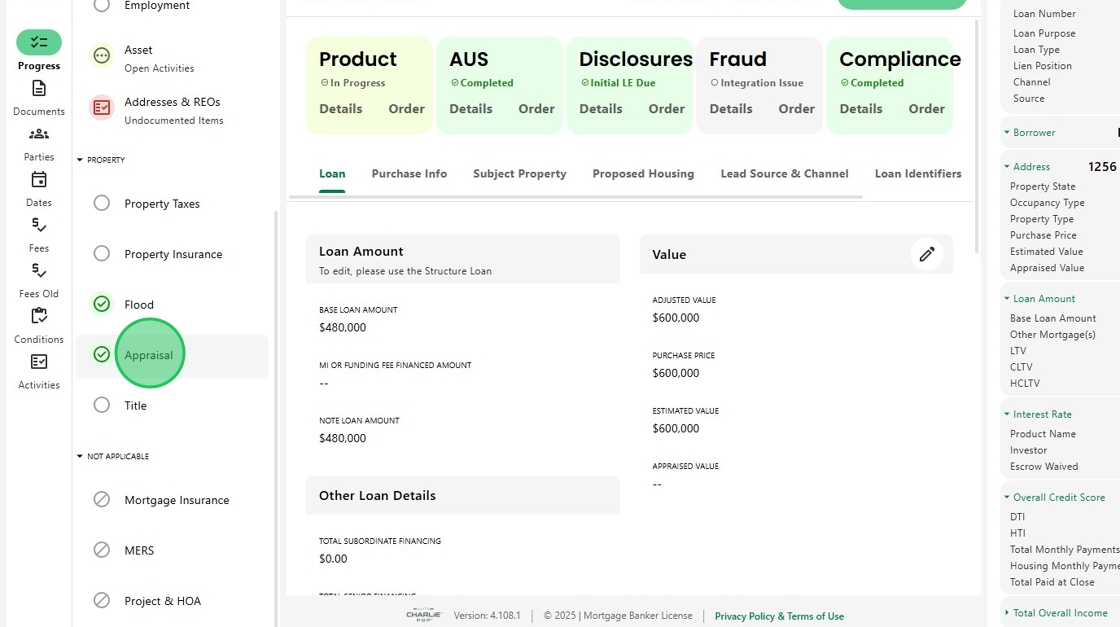
You’ll see that the Appraisal Order Checklist has moved from Open to Closed and now shows as Complete.

15. The current status of the Appraisal Progress Item also shows as Complete.
When the appraisal report is received, the status will dynamically update to Ready for Review, and related activities will be assigned.
Was this article helpful?
That’s Great!
Thank you for your feedback
Sorry! We couldn't be helpful
Thank you for your feedback
Feedback sent
We appreciate your effort and will try to fix the article