Conducting a high-level review of Borrower income and employment in Charlie allows for quick verification and identification of any missing information.
Instructions to View Borrower Employment & Income
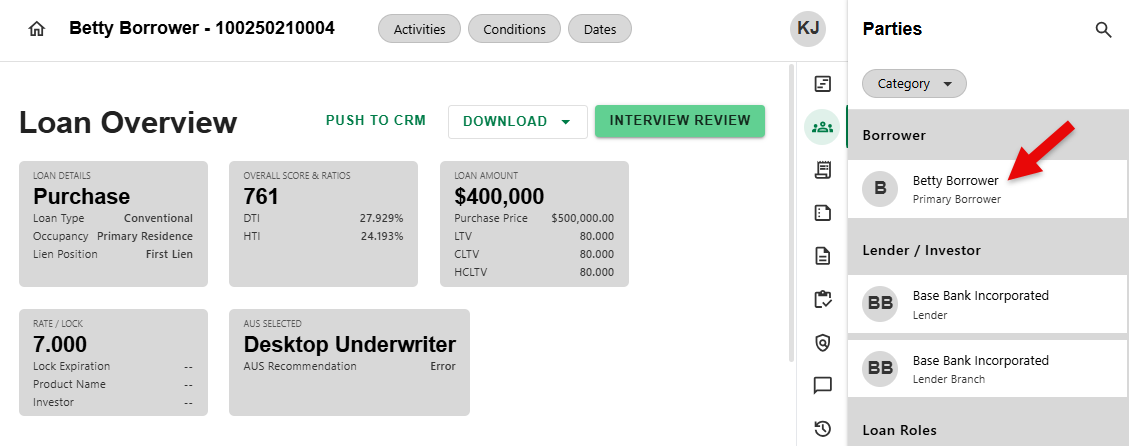
Step 1: Chose a Party
- To begin, click on a Borrower from the list in the Parties side sheet.
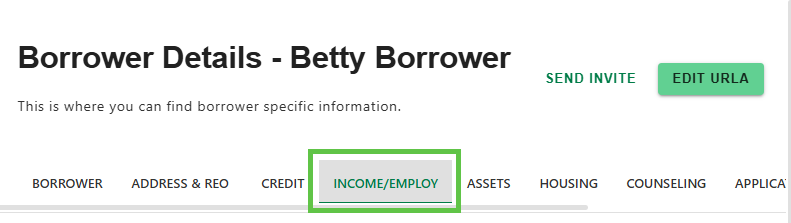
Step 2: Navigate to Income/Employment
- On the Borrower Details screen, click on the INCOME/EMPLOY tab.
Step 3: View, Add or Edit Income/Employment Information
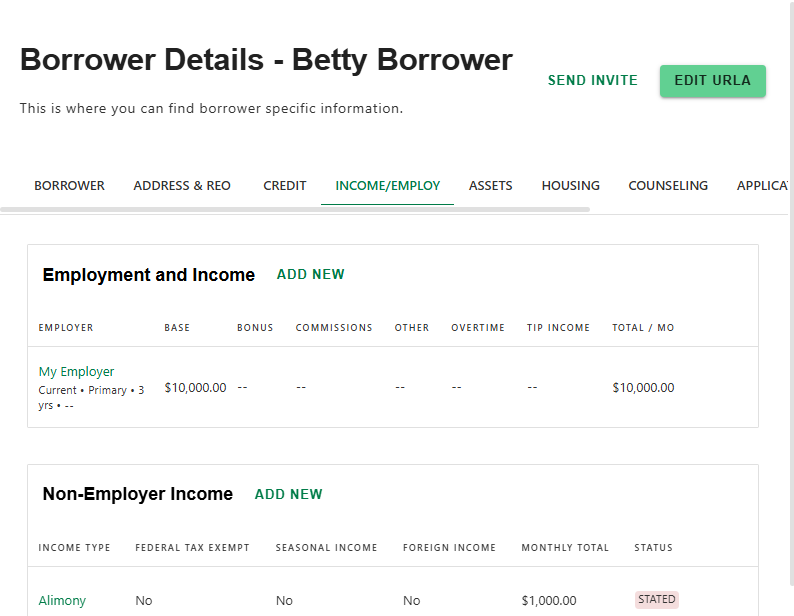
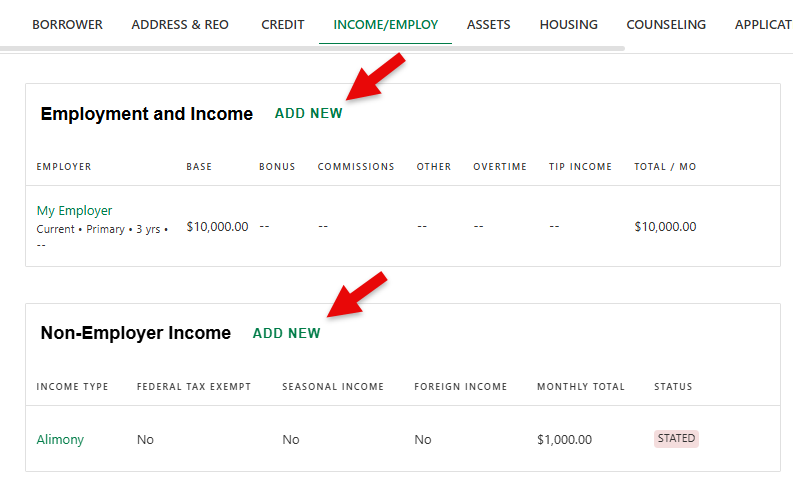
- All Borrower Income and Employment, including Non-Employer Income, can be viewed in the Income/Employ tab.
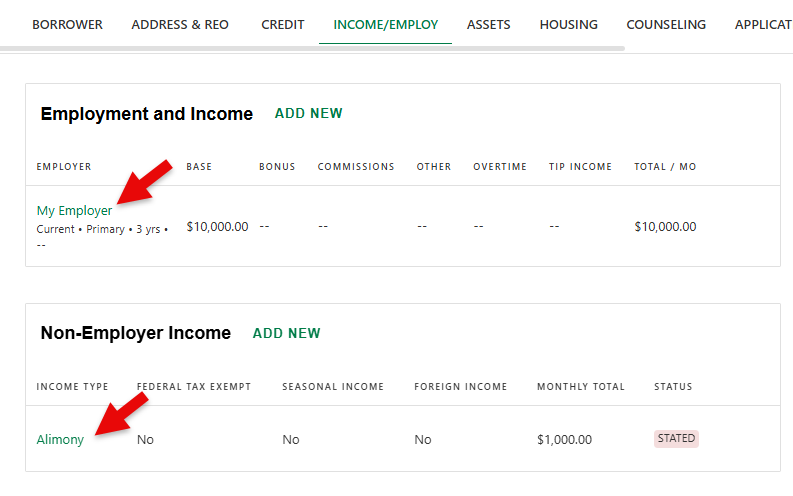
- Click on the Employer Name or Income Type to view/edit the details.
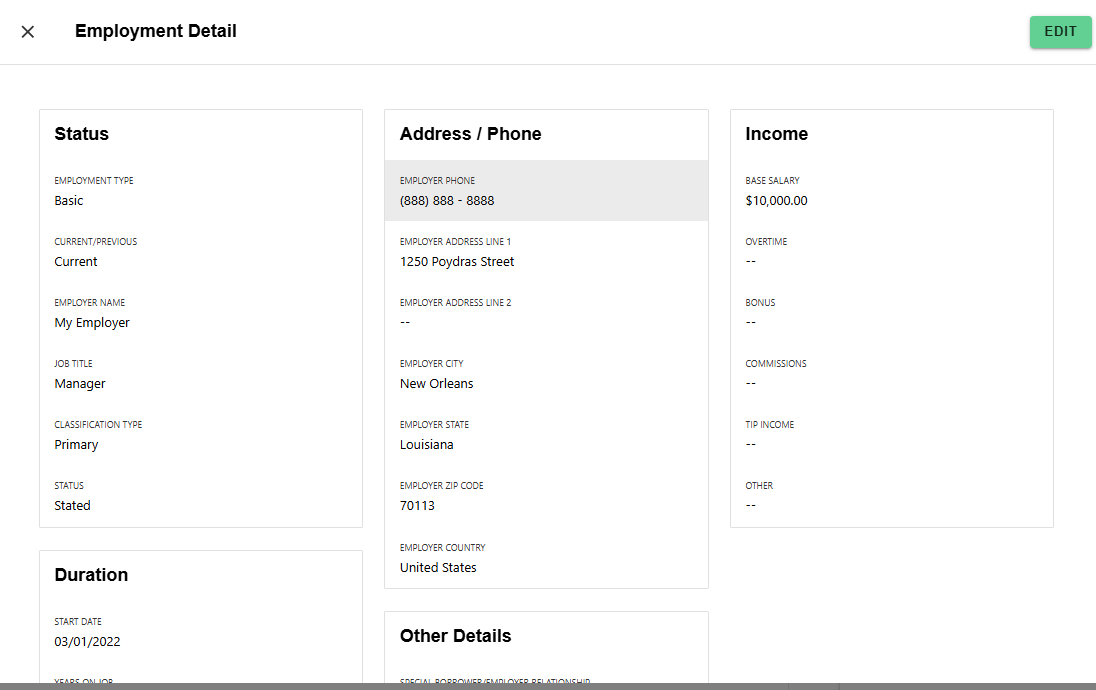
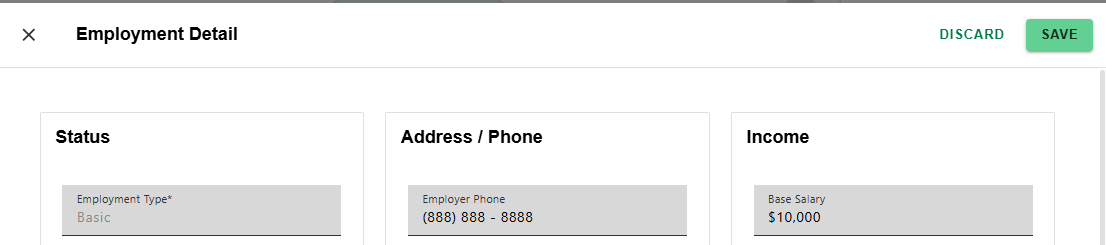
- Click 'EDIT' to make updates. Once done, click 'SAVE' to apply changes or 'DISCARD' to cancel.

- Click 'ADD NEW' to enter new Employment/Non-Employment and Income details. Once done, click 'SAVE' to apply changes or 'DISCARD' to cancel.
Borrower level Employment and Income can also be viewed on the URLA by clicking on 'EDIT URLA' on the Borrower Detail screen.
Was this article helpful?
That’s Great!
Thank you for your feedback
Sorry! We couldn't be helpful
Thank you for your feedback
Feedback sent
We appreciate your effort and will try to fix the article