How to View/Edit Borrower Consents
1. In this guide, we’ll walk through how to view and edit borrower consents in Charlie.
To access the consent records, start by opening the Application Review activity from the Application Progress Item screen.

2. Or access the Application Review through an assigned activity if one has been created for your workflow.

3. Within the Application Review screen, click on the Consents section from the left-hand panel.
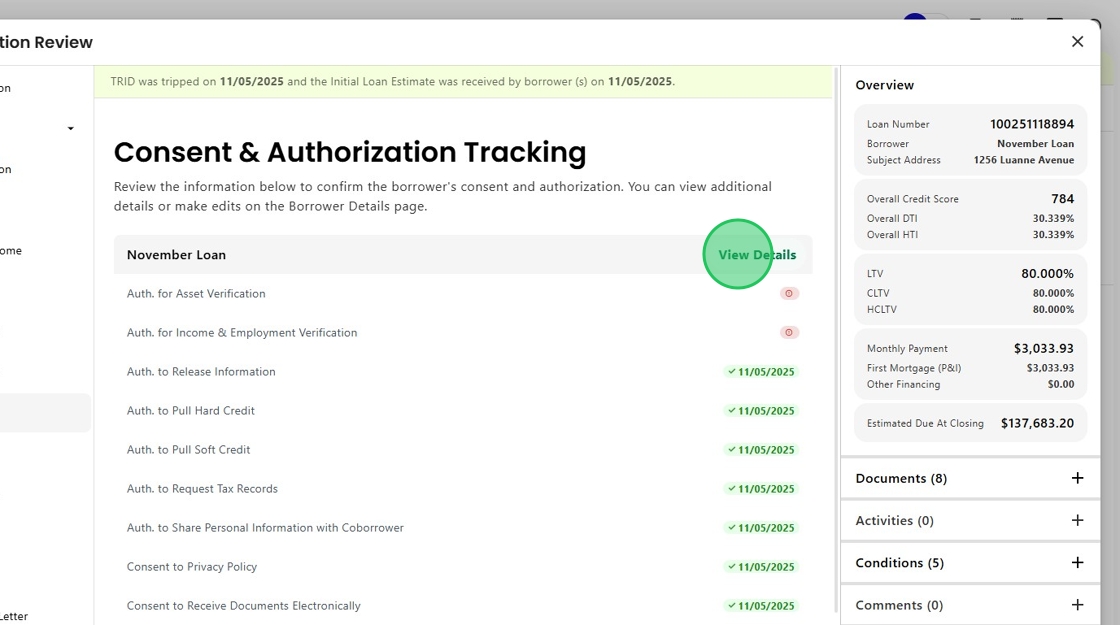
The Consents & Authorization Tracking screen displays which consents have been received and which are still pending.
In this example, you can see that the borrower did not authorize asset or income and employment verification, which appear at the top.

4. To access additional information, including how and when the consent was provided, click View Details next to the borrower’s name.
5. This opens the Consents tab on the Borrower Details screen, showing the date, method, and IP address for each consent.
Here, you can see that credit pulls were authorized by phone, while other consents were given through the borrower portal and include an IP record.

6. Consents can also be managed directly from this details screen. Click the pencil icon to open the fields for editing.

7. Here, you can enter the received date and method, including verbal consent information where allowed.

8. If a borrower revokes consent, you can update the authorization by changing the selection from Yes to No.
This makes it easy to manage and keep borrower consent information up to date and allows for activities to be triggered as needed.

Was this article helpful?
That’s Great!
Thank you for your feedback
Sorry! We couldn't be helpful
Thank you for your feedback
Feedback sent
We appreciate your effort and will try to fix the article