How to Manually Order a Flood Zone Determination
1. In this guide, we’ll walk through how to manually order a Flood Zone Determination in Charlie.
While flood orders can be automated, you can also request them manually when needed.
Start by navigating to the Flood Progress Item on the left-side menu.

2. Then click on the Order Flood button.
Alternatively, the order may be accessed through an automated assigned activity.

3. Once on the Manual Flood screen, enter any required information including the type of report you’d like to order, such as Determination or Flood Certificate.
Once all fields are complete, click Submit.

4. The order processes instantly, and the results appear on-screen. All relevant details, including flood zone status and certificate information, display in the info boxes, with the full form data shown in the fields below.
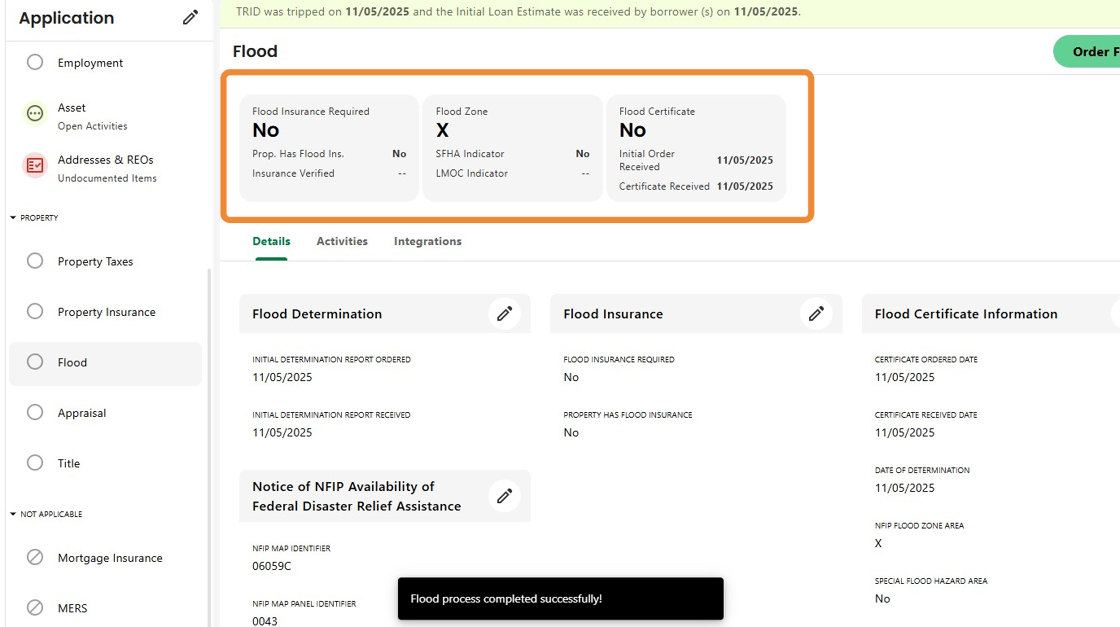
5. If the property is in a flood zone, Charlie will automatically trigger any related activities.

6. To view the report, click the Documents icon from the left side panel.
Select the Flood Zone Determination Report from the list to open the PDF.

7. Review the flood form for full details.
If your setup includes automation, receiving this report will also trigger the corresponding workflow activities automatically.

8. After ordering and reviewing manually, open the Activities tab, then click the Status dropdown. Select Complete, and once saved, the Progress Item will automatically update to reflect the change.

Was this article helpful?
That’s Great!
Thank you for your feedback
Sorry! We couldn't be helpful
Thank you for your feedback
Feedback sent
We appreciate your effort and will try to fix the article