How to Generate a Title Order Form
1. In this guide, we’ll walk through how to generate a Title Order Form in Charlie.
This process allows you to quickly review details and create the request to send to the title company.
Start by accessing the Title Order activity, either from your assigned activity list or by clicking the button on the Title Progress Item screen.

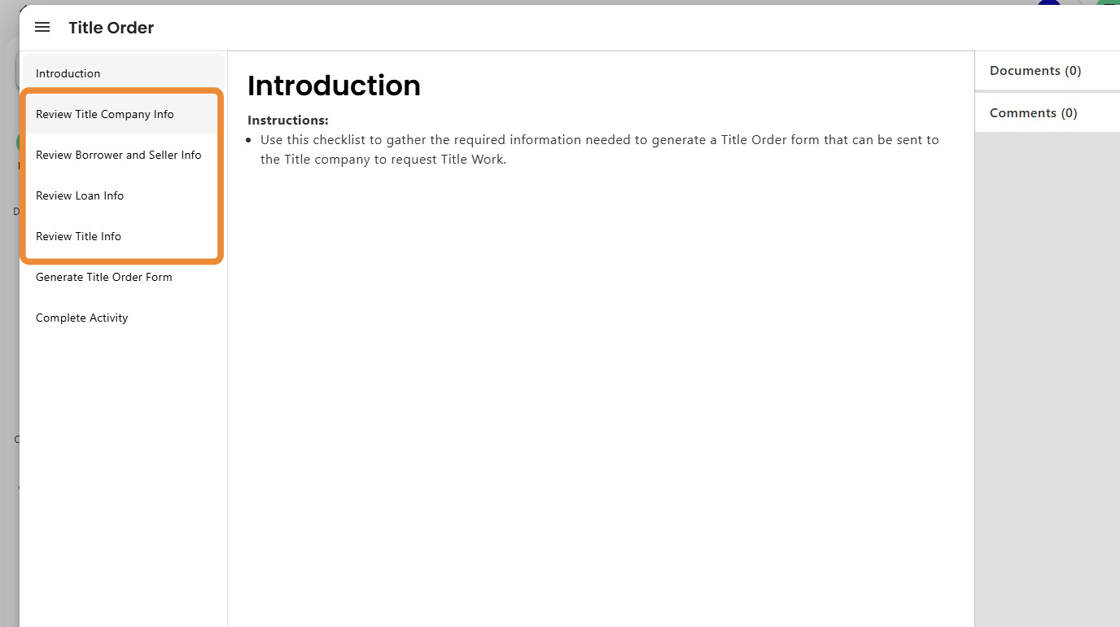
2. Within the Title Order activity, complete all required sections.
Make sure to verify and update information for the title and settlement parties, borrower (and seller if applicable), loan, and title details.
3. Once everything is entered, navigate to the Generate Title Order screen. From there you can select Generate Title Order Email.

4. This will create a template that can be copied into the body of an email, allowing for customization of the text if need be.

5. Alternatively, select Generate Title Order Form to create a document version of the request.
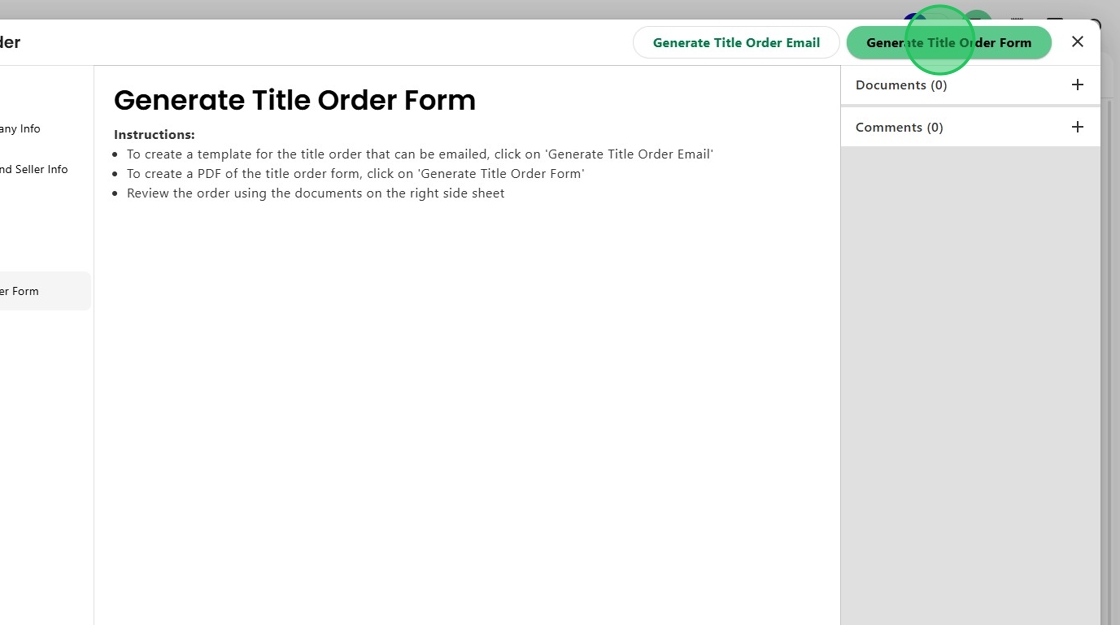
6. This document can be downloaded as a PDF.
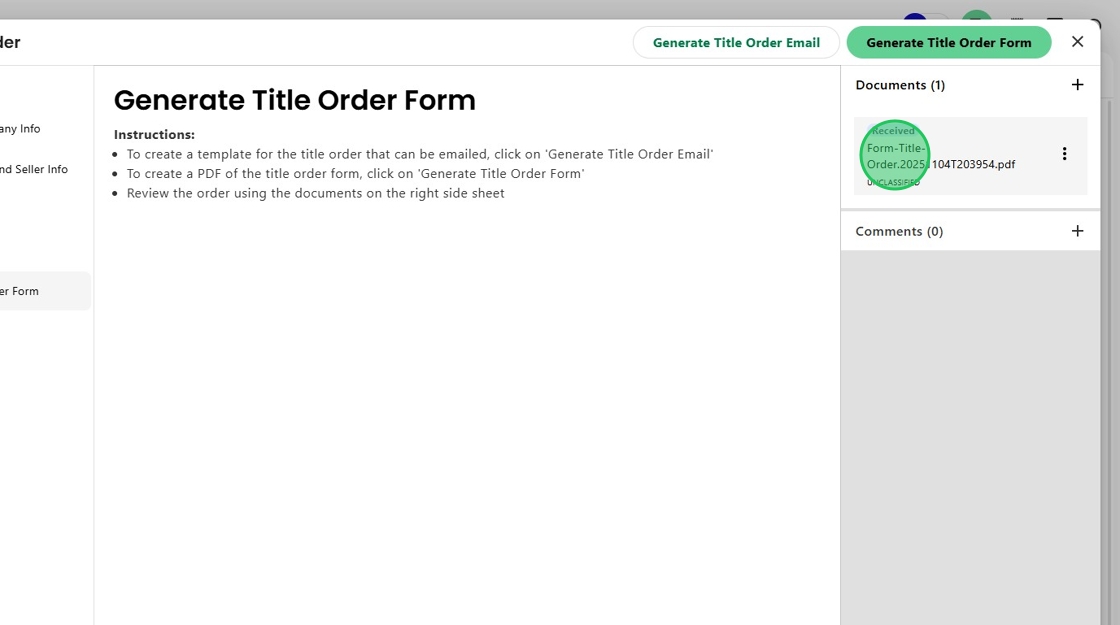
7. After generating the form, proceed to Complete Activity to finalize your task.

8. Select Completed from the dropdown and click Finish.

9. After completing the activity, you are returned to the main Title Progress Item screen.

10. In the Title Report section, click the pencil to edit.

11. Enter the Title Report Requested Date and then click the check mark to save.

12. Completing the activity will update the current Title progress item status to Complete. And any assigned activity will move from Open to Closed.
Once the title order is received and uploaded, Charlie will automatically update the status to Needs Review and appropriate activities will be assigned.

Was this article helpful?
That’s Great!
Thank you for your feedback
Sorry! We couldn't be helpful
Thank you for your feedback
Feedback sent
We appreciate your effort and will try to fix the article