How to Manually Enter Verbal Intent to Proceed
1. In this guide, we’ll walk through how to manually enter a verbal Intent to Proceed, or ITP, in Charlie.
Recording this information ensures accurate tracking and compliance once the borrower provides verbal acknowledgment.

2. Begin by confirming the initial LE has been delivered to the borrower. Notice the banner on the top of the screen. It is visible for 5 days after the LE is received. Once confirmed, click on the Intent to Proceed Progress Item on the left-side menu.
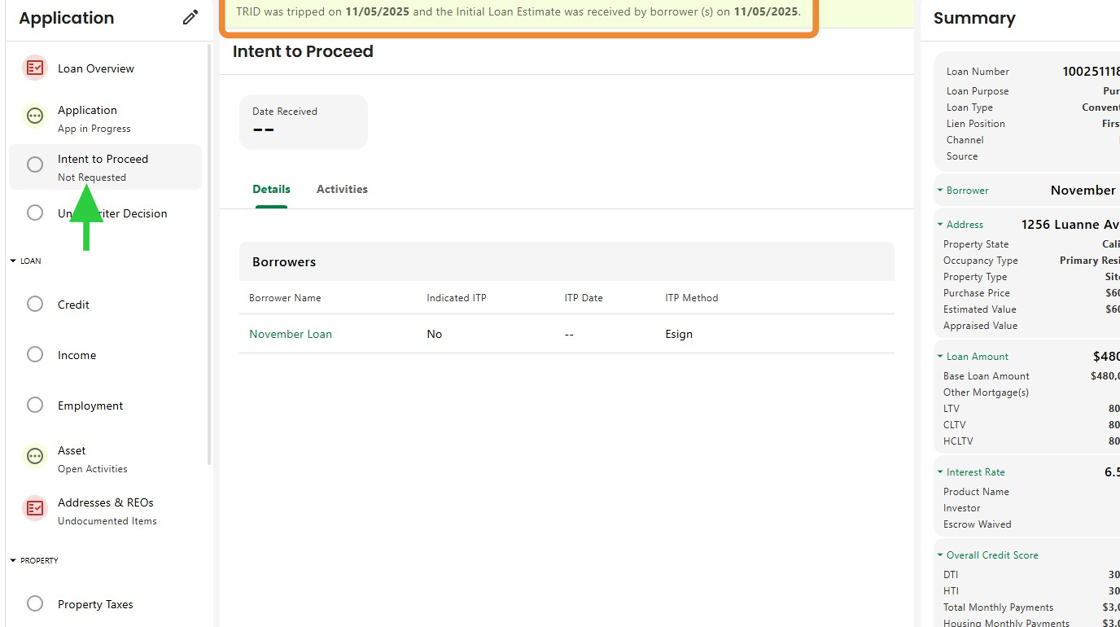
3. Next, select the borrower who provided verbal acknowledgment.

4. Click the Indicated ITP field to begin entering the borrower’s Intent to Proceed information.

5. Select the ITP Date using the calendar tool to record when the borrower gave verbal intent.
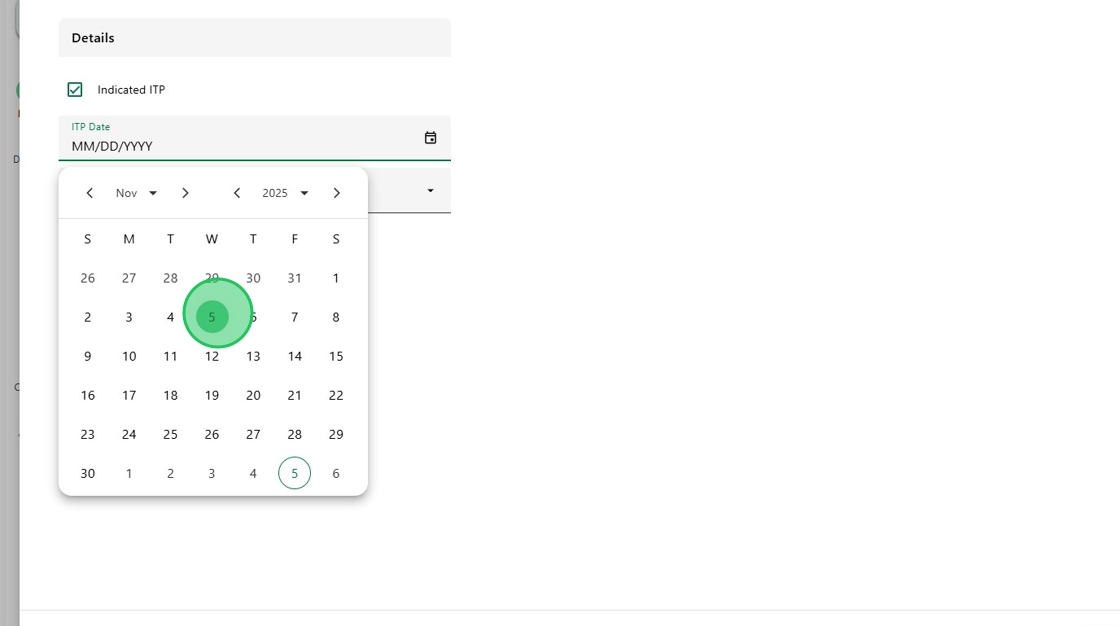
6. From the ITP Method dropdown, choose Verbal to indicate that the acknowledgment was provided verbally.
Then click Save.

7. The Intent to Proceed status now appears as Received across the Progress Item side panel, the information card and the borrower table.
This confirmation ensures all related activities are automatically triggered once the borrower’s intent is recorded.

Was this article helpful?
That’s Great!
Thank you for your feedback
Sorry! We couldn't be helpful
Thank you for your feedback
Feedback sent
We appreciate your effort and will try to fix the article