This guide explains how to run the Automated Underwriting System (AUS) in Charlie through Interview Review. The AUS process ensures loans meet underwriting guidelines by quickly analyzing borrower data.
Instructions to Run AUS through Interview Review
Step 1: Navigate to Interview Review
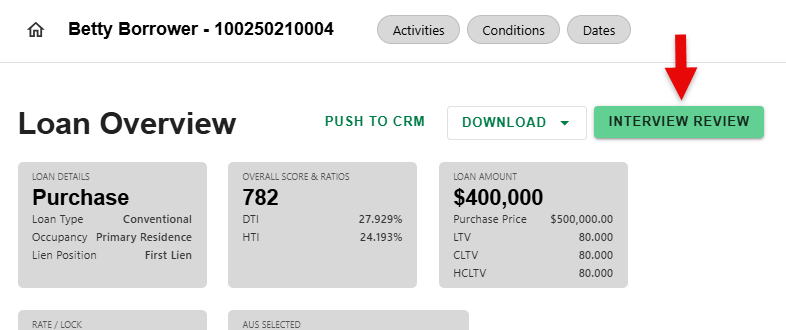
- On the Loan Overview screen, click on the Interview Review button.
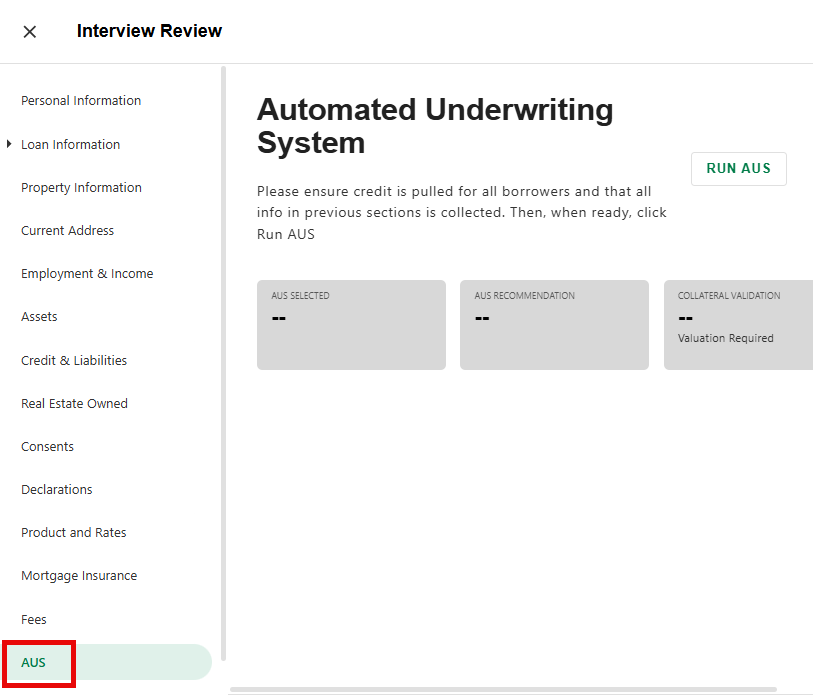
- Select 'AUS' from the menu on the left.
Step 2: Run AUS
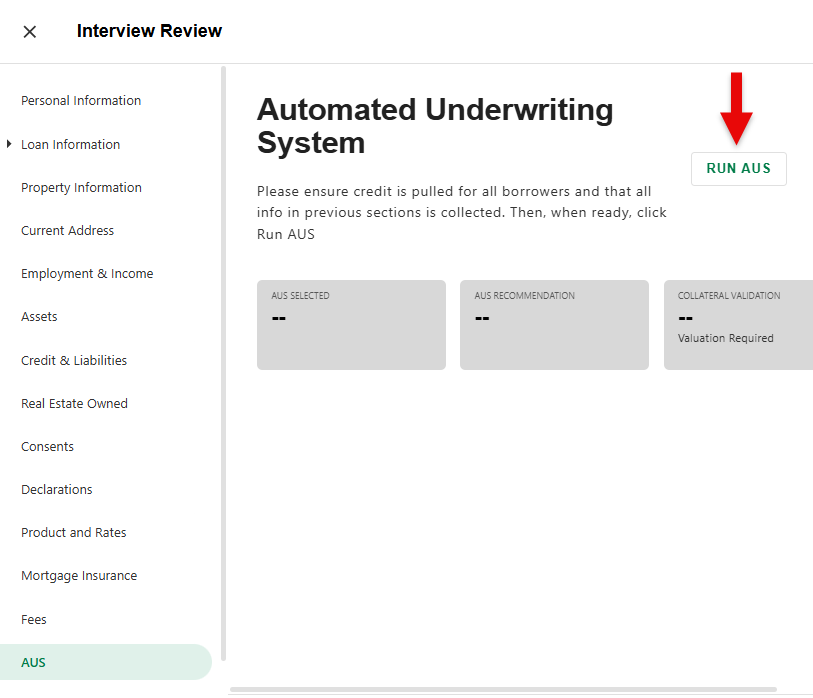
- Click the 'RUN AUS' button on the Automated Underwriting System detail screen.
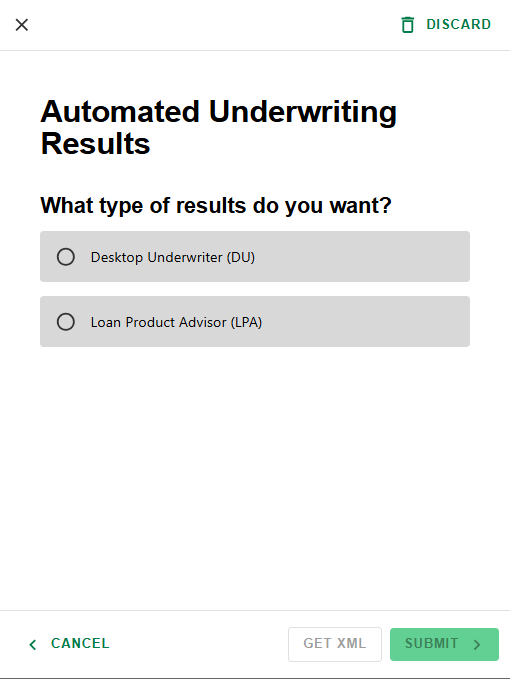
- From the list of AUS options, select the type you want to run. Click 'SUBMIT' to proceed or 'CANCEL' to go back.
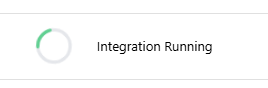
- The banner at the top of the screen will show the integration is in progress.
Step 3: Get Results
- After Charlie runs the underwriting analysis, you will be redirected back to the Automated Underwriting System detail screen.
- The banner at the top will now show that the integration was successful.

Step 4: Review Summary
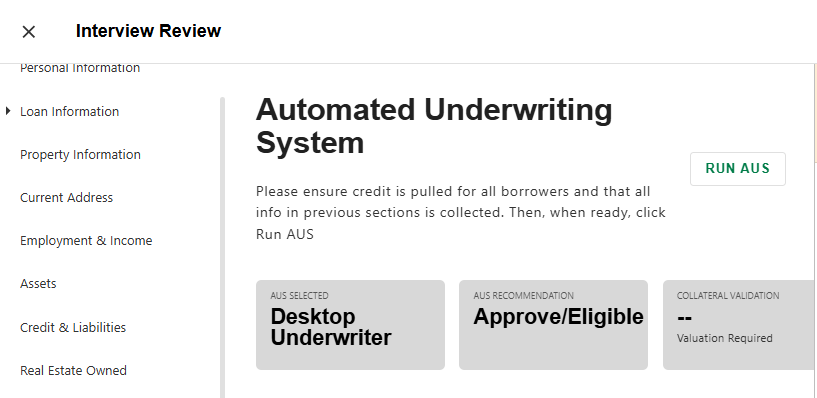
- Review the Info Boxes on the Automated Underwriting System detail screen for a summary of the findings.
Step 5: View PDF
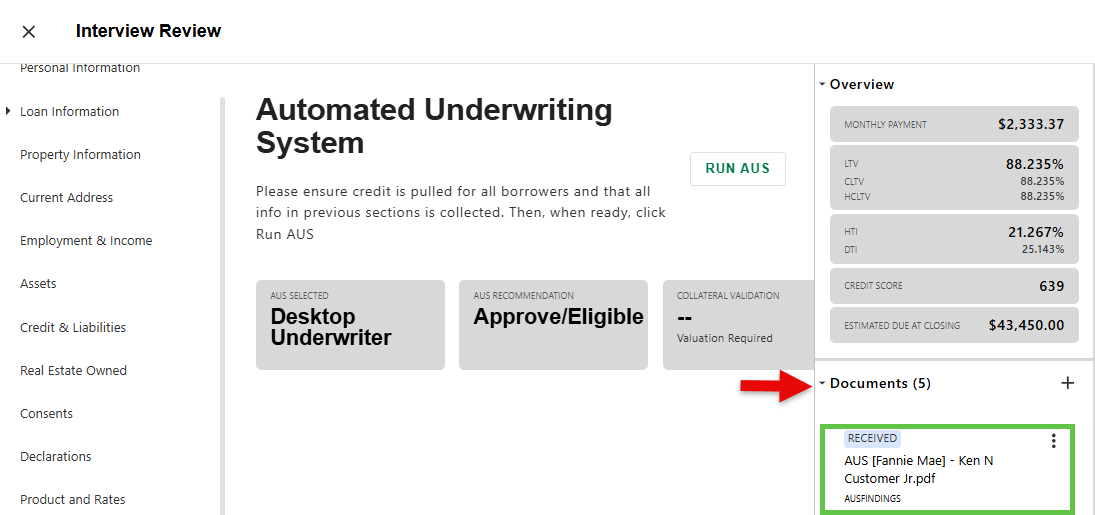
- Expand the Documents section on the right to view the PDF of the findings.
AUS can also be run in the Automated Underwriting Progress Item. Look for the 'RUN AUS' button on the Automated Underwriting Detail Screen.
Was this article helpful?
That’s Great!
Thank you for your feedback
Sorry! We couldn't be helpful
Thank you for your feedback
Feedback sent
We appreciate your effort and will try to fix the article