This guide will walk you through the step-by-step process of pulling a credit report through the Interview Review flow in Charlie.
Instructions Order Credit
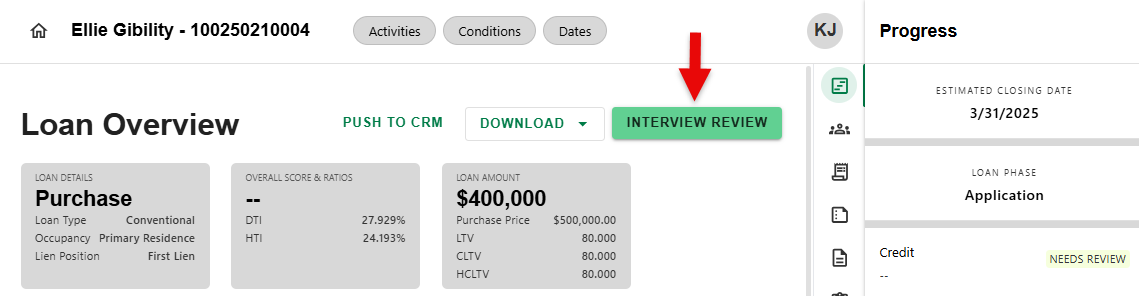
Step 1: Navigate to Interview Review
- From the main Loan Overview screen, click on the 'INTERVIEW REVIEW' button.
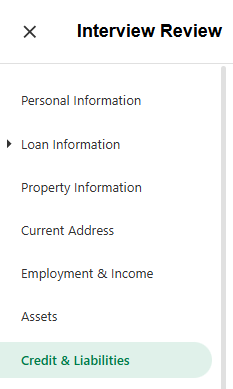
Step 2: Select Credit & Liabilities
- From the menu on the left, select 'Credit & Liabilities'
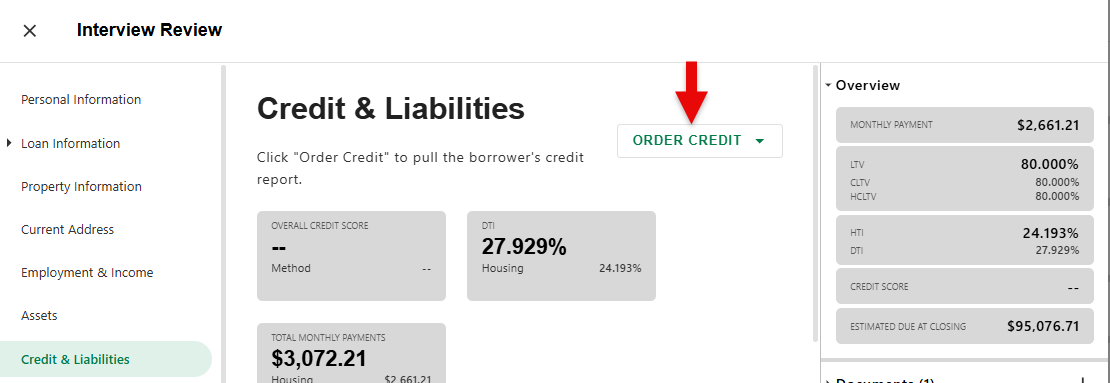
Step 3: Order Credit
- On the Credit & Liabilities screen, click on the 'ORDER CREDIT' button.
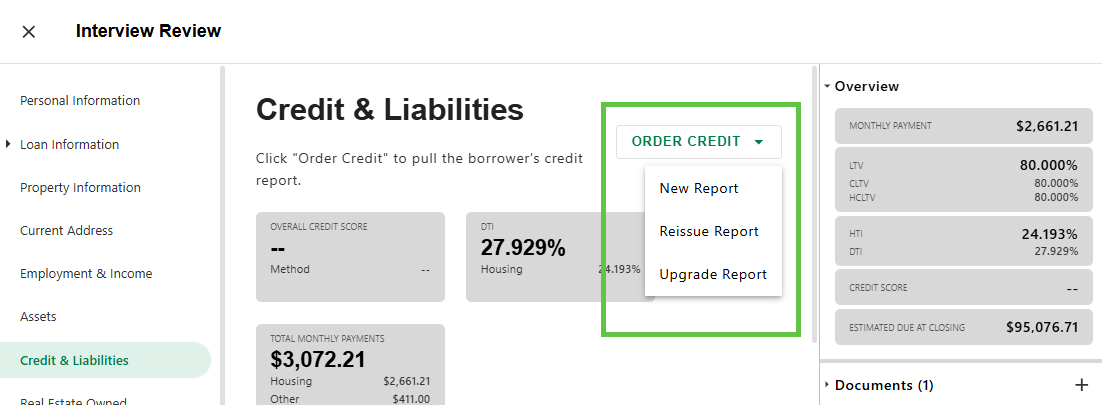
Step 4: Select Report Type
- Select the Type of Report (New, Reissue or Upgrade).
Step 4: Enter Credit Details and Submit
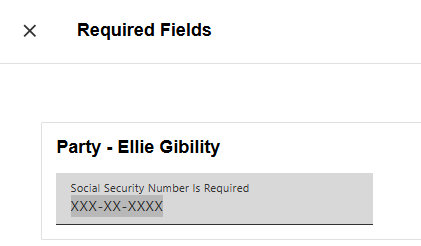
- Charlie will prompt for any missing information required to complete an order. Fill in the fields and click 'SAVE'.

- Enter the Credit Details for the type of report being requested. Click the 'SUBMIT' button to generate the report or 'CANCEL' to start over.
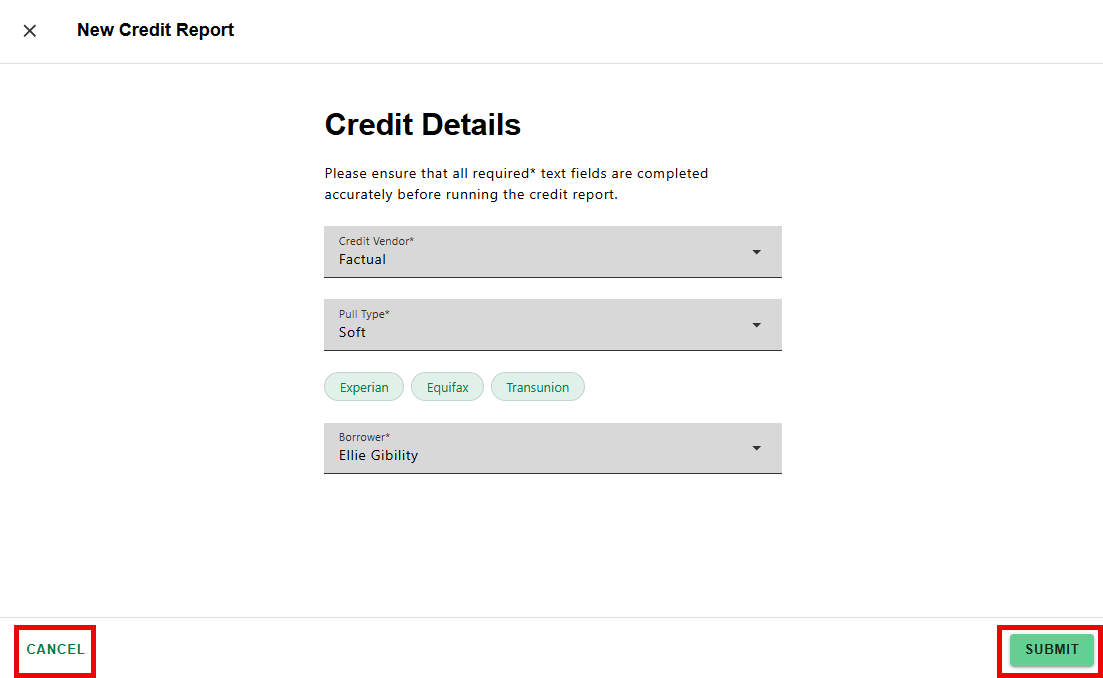
NOTE: Lenders can set default options for credit pulls, including vendor, pull type (Soft or Hard), and default bureaus for Soft pulls. Applicant details auto-populate to streamline the process. Contact your Account Manager for more details.
Once the credit order is complete, the Credit & Liabilities screen will update automatically, displaying liabilities and report details as well as the overall loan credit information within the Info Card and in the Overview.
Was this article helpful?
That’s Great!
Thank you for your feedback
Sorry! We couldn't be helpful
Thank you for your feedback
Feedback sent
We appreciate your effort and will try to fix the article