In Charlie, all key credit report details are displayed directly on-screen, making it easy to review at a glance. If you need the full report, you can also view the PDF. This guide covers how to review both.
Instructions to View Credit Report in Interview Review
- Step 1: Navigate to Interview Review
- Step 2: Review Credit & Liabilities Screen
- Step 3: Select Tab
- Step 4: View Liabilities
- Step 5: Access PDF
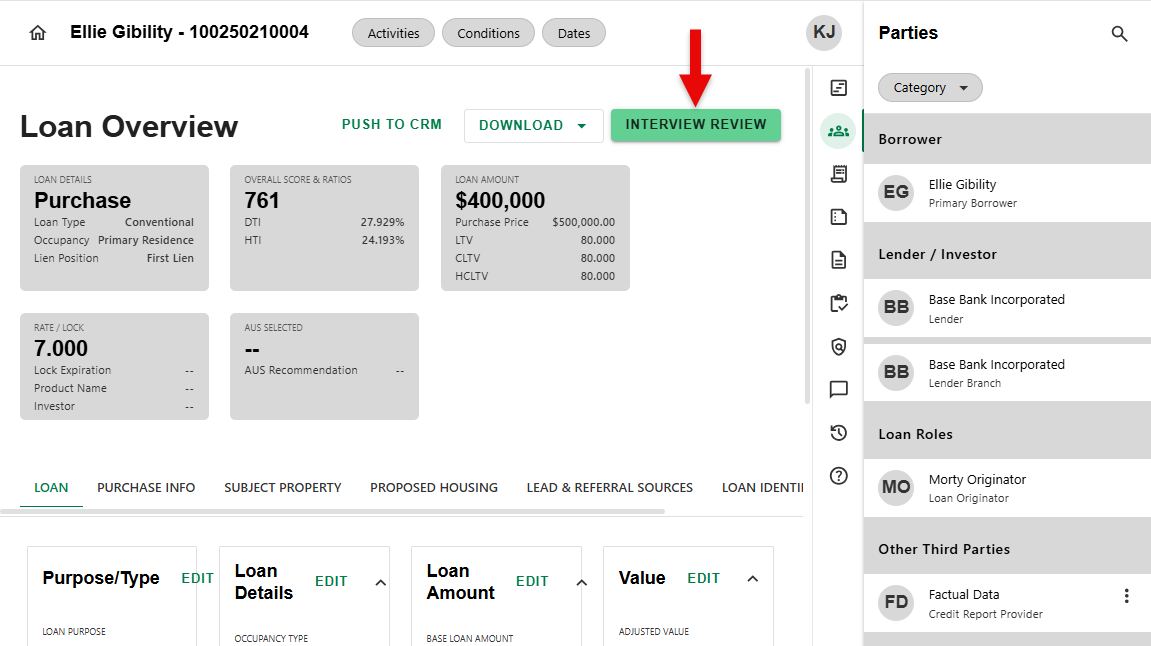
Step 1: Navigate to Interview Review
From the main Loan Overview screen, click on the 'INTERVIEW REVIEW' button.
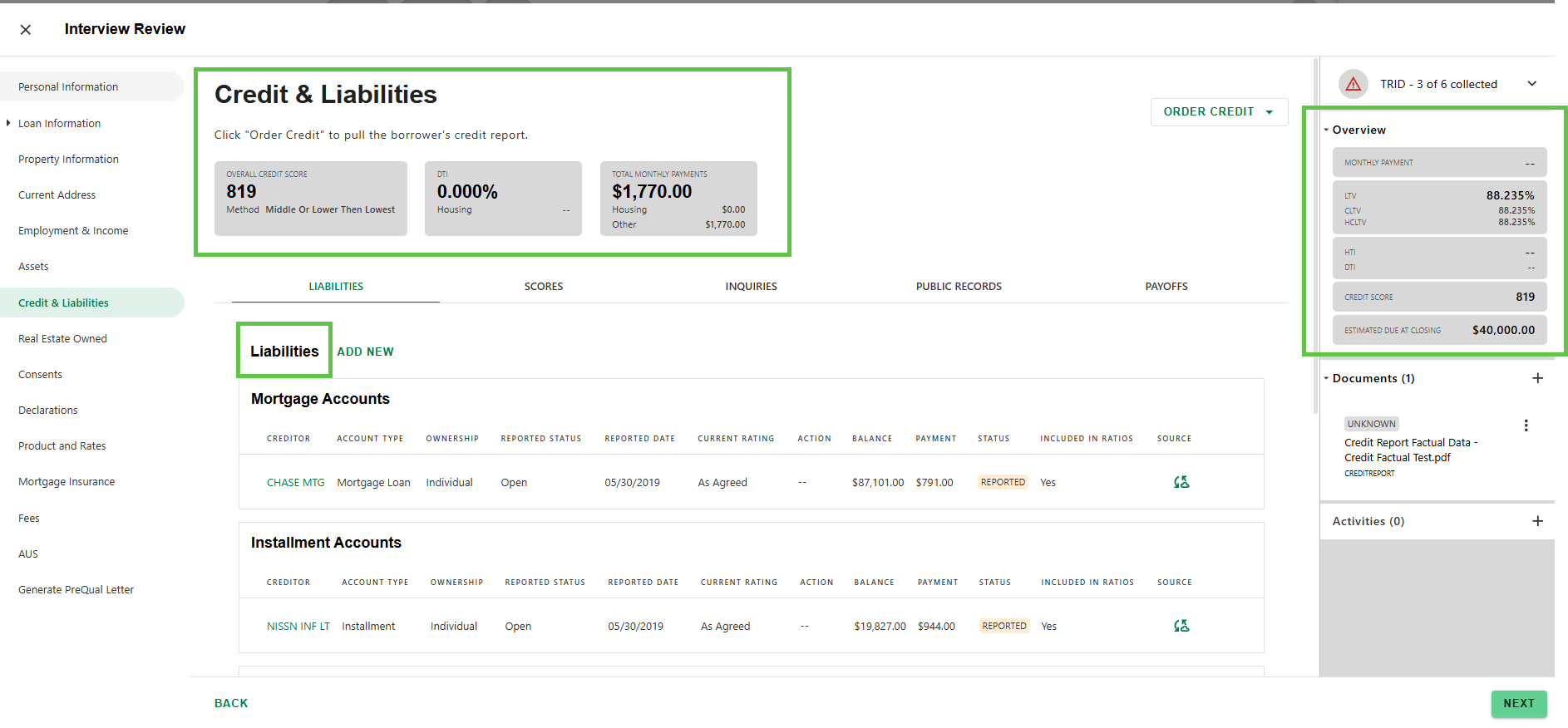
Step 2: Review Credit & Liabilities Screen
Once the Credit Order is returned, the Credit & Liabilities screen will be updated automatically with Liability details and overall loan level credit information in the Info Cards and in the Overview.
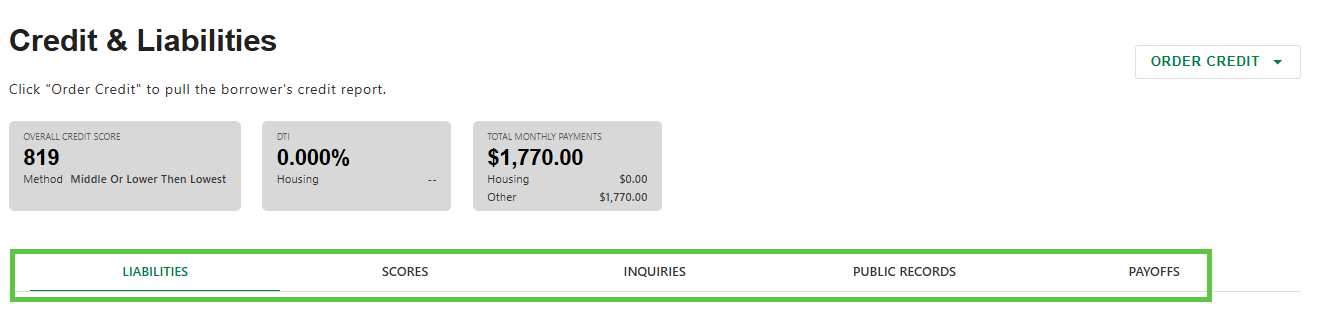
Step 3: Select Tab
- Access details for different credit report sections by clicking on the corresponding Tab.
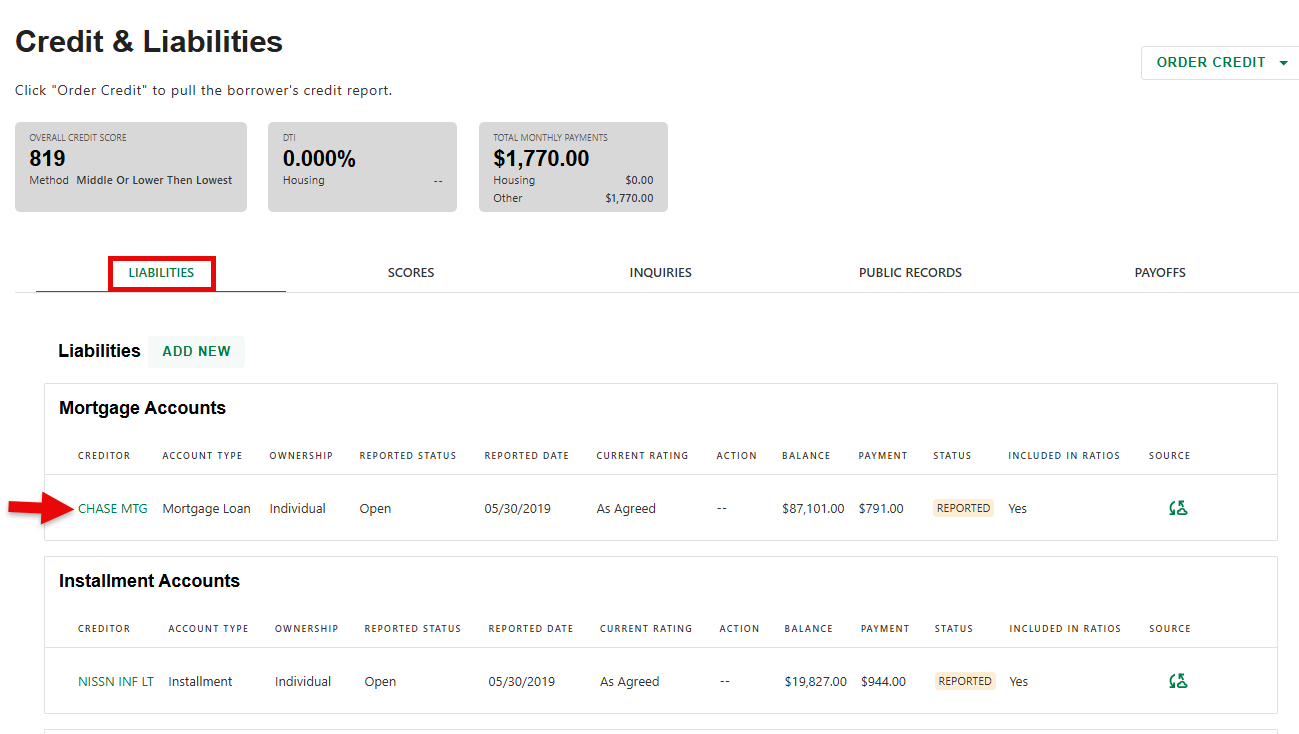
Step 4: Manage Liabilities
- To view account details and manage the liability, click the name of the creditor on the Liabilities Tab.
- Click 'EDIT' to update any of the fields.
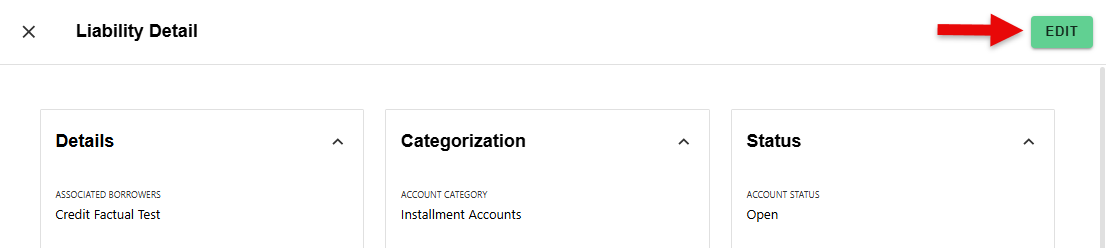
- Select 'SAVE' to apply changes or 'DISCARD' to cancel.

Step 5: Access PDF
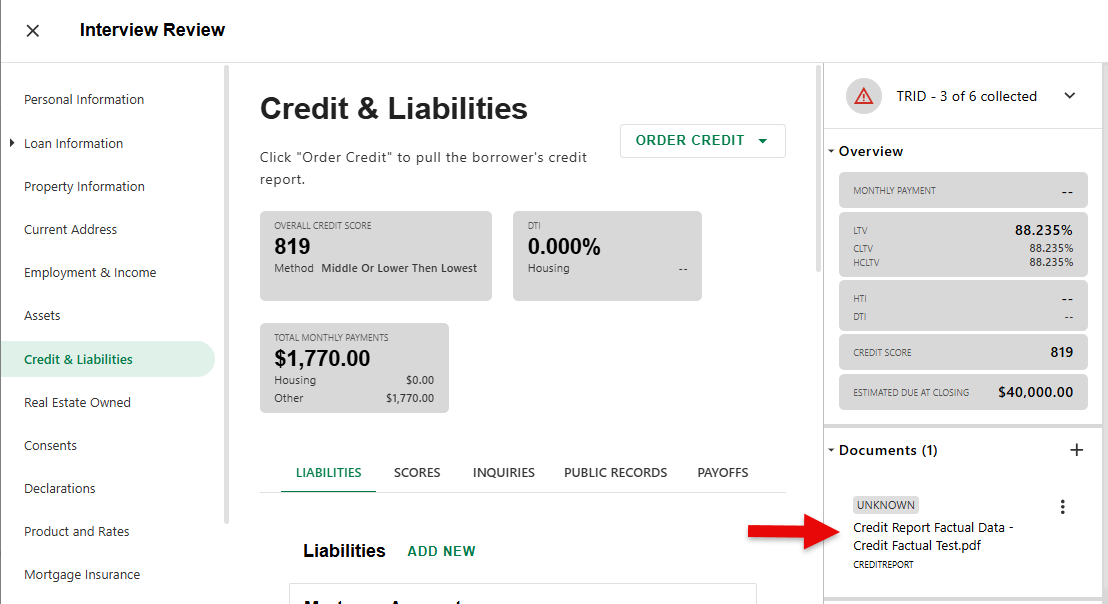
- The PDF of the report can be viewed by selecting it under Documents on the right of the screen.
There is a 'SOURCE' icon for each liability that will tell you how the liability was populated.

Liabilities populated from a credit report will show a "Vendor Response" source that looks like this:

Was this article helpful?
That’s Great!
Thank you for your feedback
Sorry! We couldn't be helpful
Thank you for your feedback
Feedback sent
We appreciate your effort and will try to fix the article