This guide shows how to view loan updates in Charlie by accessing the Change History log.
Instructions to View History of Changes on a Loan
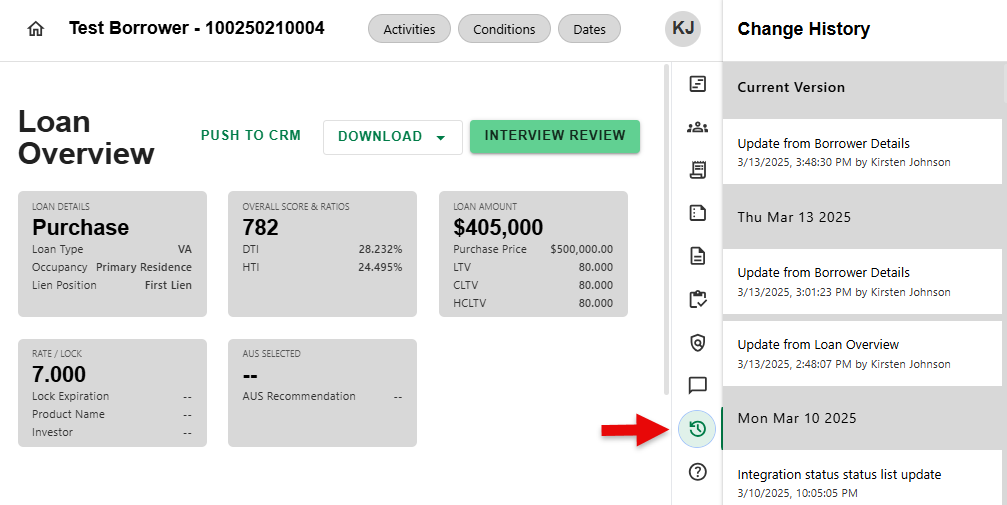
Step 1: Click on the Change History Icon
- From anywhere in the loan, navigate to the side sheet and click on the Change History icon.
Step 2: Review List of Changes
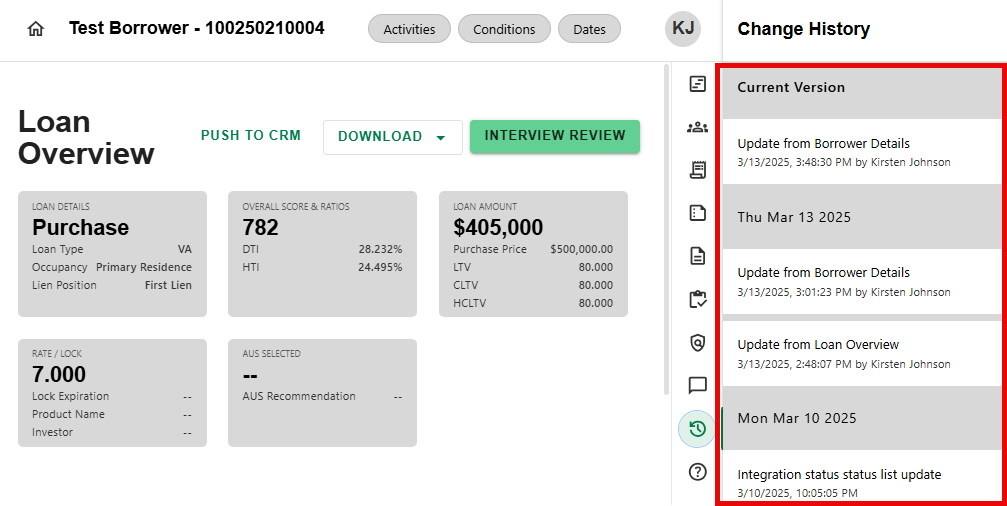
Review the list of Updates, with the most recent at the top.
Step 3: Select Update to View Details
- Select Update to view details. Changes from the previous fields are highlighted. Example below shows Other Income added to the loan.
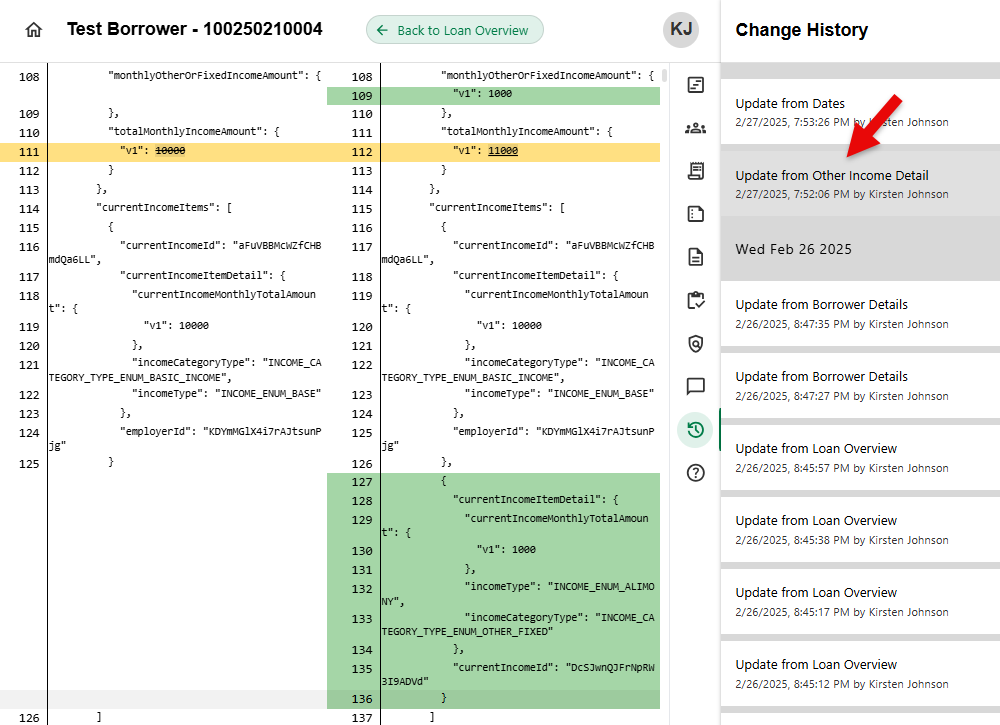
Updates display the date, time, and user who made the change, providing a clear audit trail.
Was this article helpful?
That’s Great!
Thank you for your feedback
Sorry! We couldn't be helpful
Thank you for your feedback
Feedback sent
We appreciate your effort and will try to fix the article