The TRID Tracking Progress Item provides a centralized view of key disclosure milestones, including Application Dates, Closing Dates, and disclosure delivery timelines. This tool helps users stay compliant by making it easy to monitor critical deadlines.
There is a Change of Circumstance section for users to manage recorded re-disclosure events. And the Print Documents button provides a quick way to generate disclosure packages.
Instructions to Use the TRID Tracking Progress Item
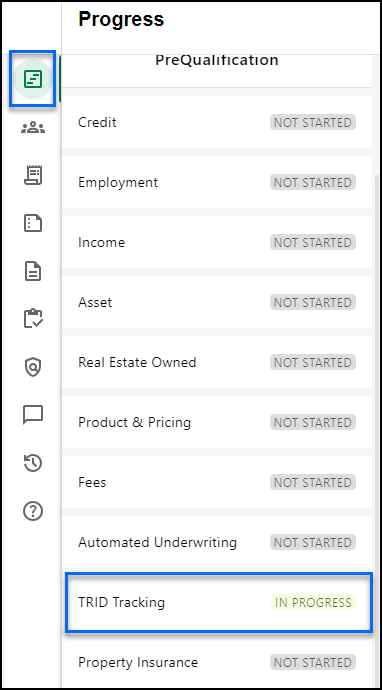
Step 1: Click on the TRID Tracking Progress Item
- Navigate to the TRID Tracking Progress Item located in the Progress Item Sidesheet.
Step 2: Review Summary Details
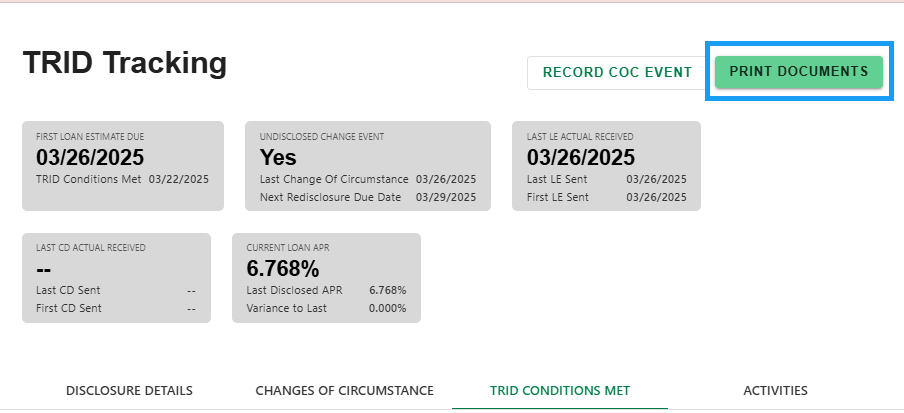
- Review the Info Boxes at the top of the screen for a summary of current TRID status, including due dates, events and last disclosed details.
- The 'FIRST LOAN ESTIMATE DUE' Date automatically populates when TRID is triggered.
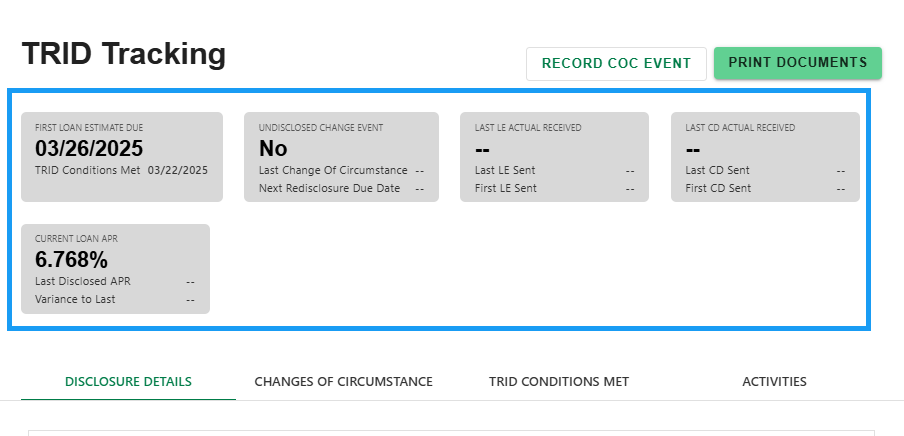
Step 3: TRID Tracking Banner
- The TRID tracking banner displays an alert to help draw attention to when TRID is going to trip. Once tripped, the banner is replaced by a banner indicating when the initial Loan Estimate is due.


Step 4: Review Disclosure Details Tab
- The 'DISCLOSURE DETAILS' tab contains relevant dates for conditions met, closing date and disclosure delivery dates for tracking purposes.
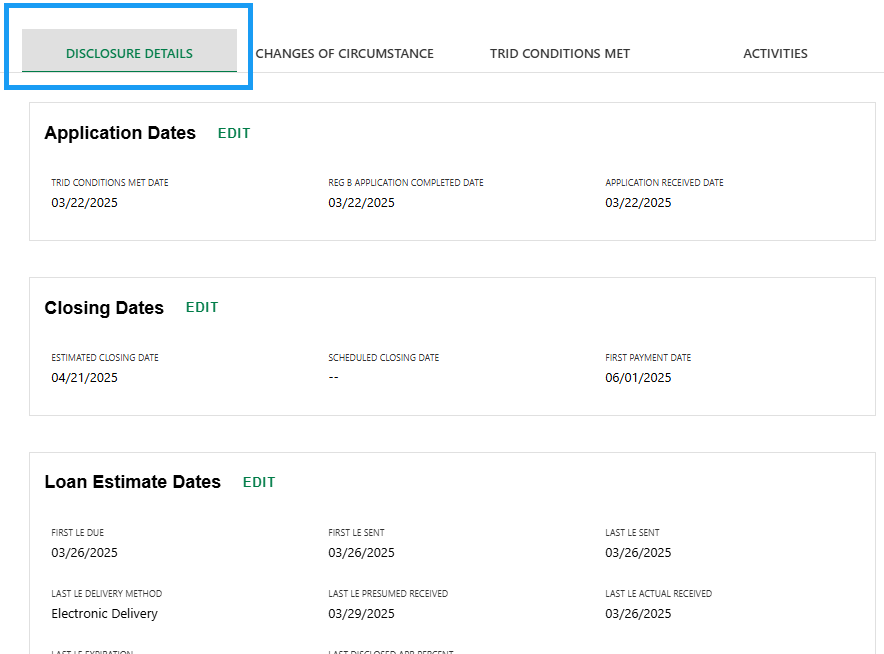
NOTE: Certain fields will be editable, by permission, with most auto populating based on rules or actions (e.g. sending disclosures).
Step 5: Change of Circumstance Tab
- The 'CHANGES OF CIRCUMSTANCE' Tab has a table that shows the details and status of events that may have triggered a change of circumstance.
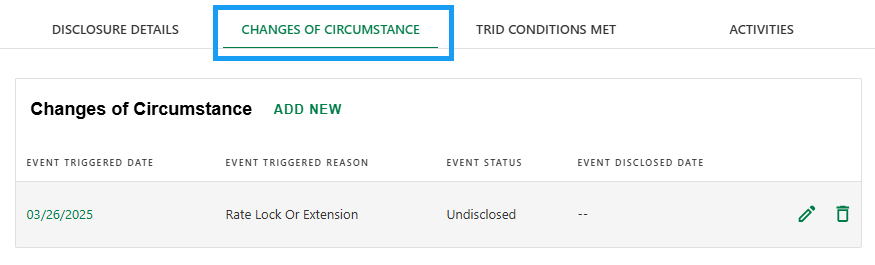
- Click on the date of the event to view additional details.
- Click 'ADD NEW' to manually add an new CoC event.
NOTE: When a re-disclosure is required, a new alert banner will appear at the top of all screens.

Step 6: TRID Conditions Met Tab
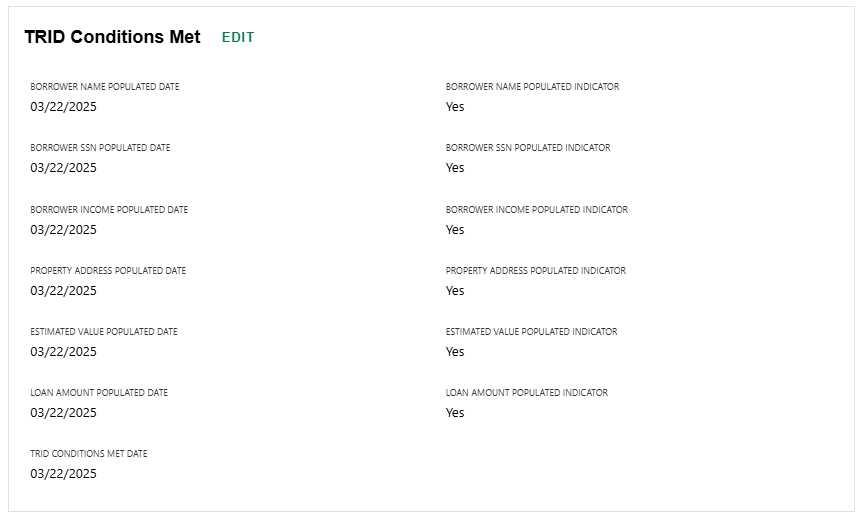
- The 'TRID CONDITIONS MET' tab shows the dates when each of the 6required pieces of information for a TRID application were collected.
- NOTE: An 'EDIT' button in each date section may be available to permissioned users.

Step 7: Print Documents
- Easily click on the 'PRINT DOCUMENTS' button to generate disclosures.
Every Progress Item detail screen includes an 'ACTVITIES' tab to show all related activities.

Was this article helpful?
That’s Great!
Thank you for your feedback
Sorry! We couldn't be helpful
Thank you for your feedback
Feedback sent
We appreciate your effort and will try to fix the article