Tracking the last disclosed APR is key for compliance and borrower transparency. Charlie makes it easy to find this value within the loan file. This article shows you where to look.
Instructions to View Last Disclosed APR
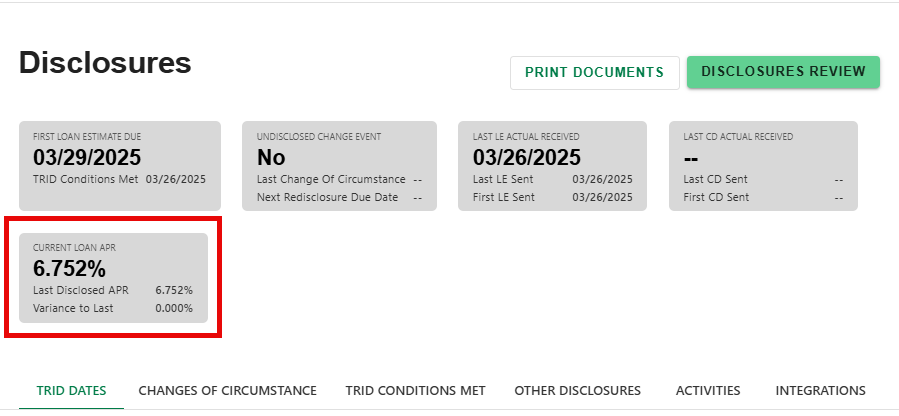
Step 1: Navigate to Disclosures Progress Item
- From any screen, navigate to the Progress Item sidesheet and select the Disclosures Progress Item.

Step 2: View APR Info Card on Disclosures Screen
- View the APR Info Card at the top of the Disclosures detail screento see:
- Current APR
- Last Disclosed APR
- Variance to Last Disclosed APR
OR
Step 3: Navigate to Fees Progress Item
- From any screen, navigate to the Progress Item sidesheet and select the Fees Progress Item.
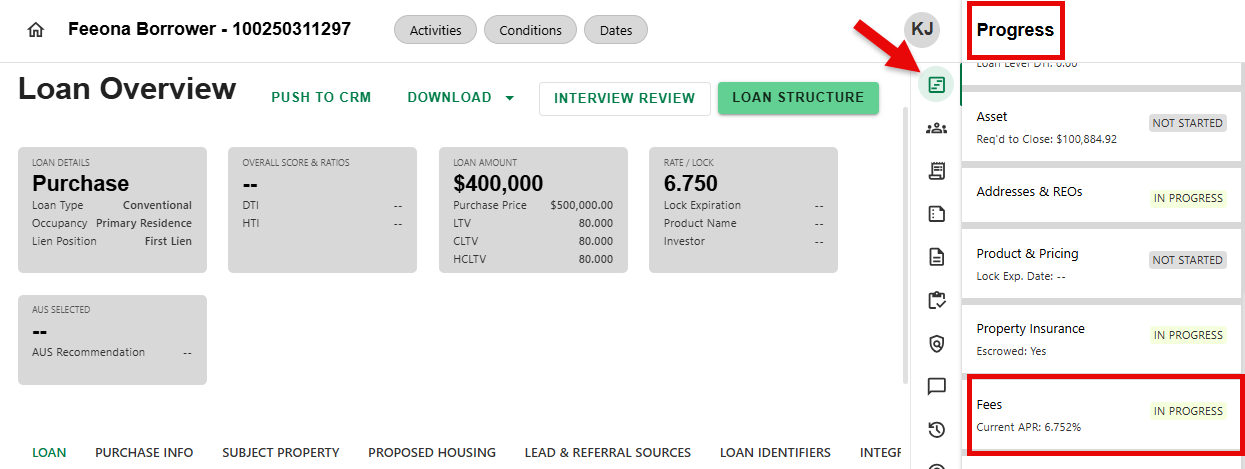
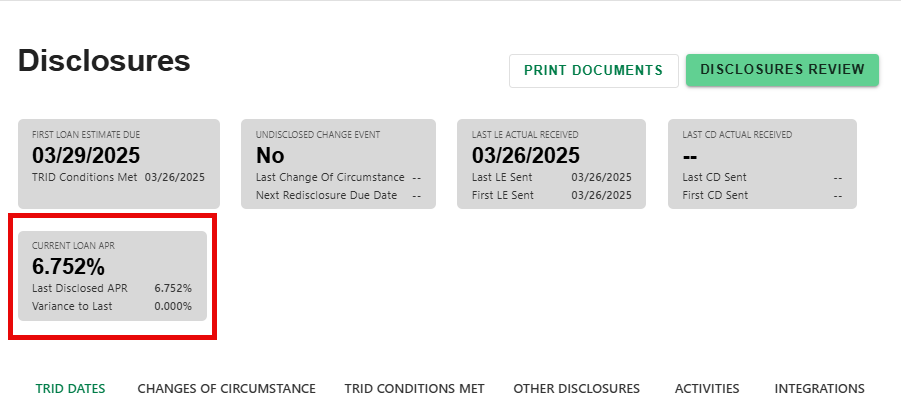
Step 4: View APR Info Card on Fees Screen
- View the APR Info Card at the top of the Disclosures detail screen to see:
- Current APR
- Last Disclosed APR
- Variance to Last Disclosed APR
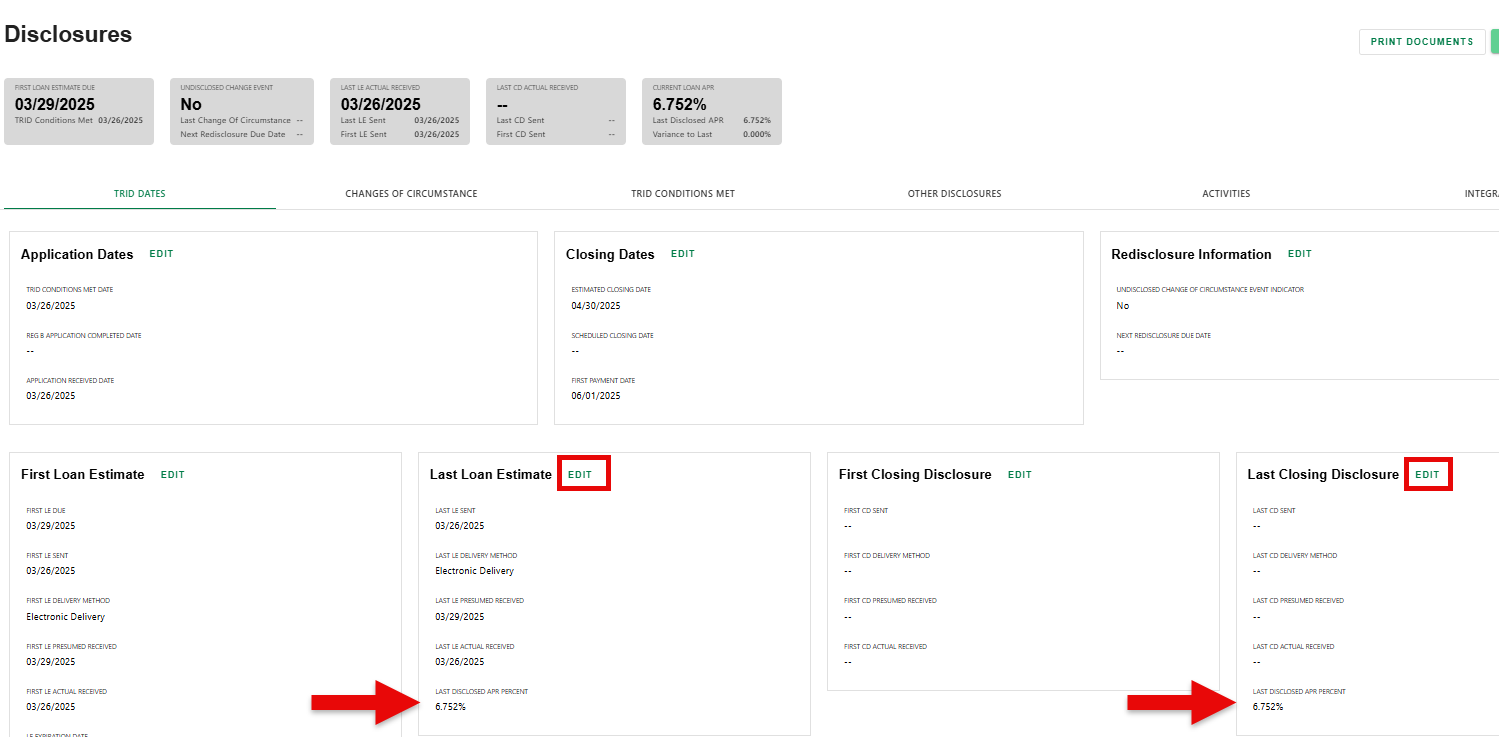
The last disclosed APR should update automatically, but in the event it needs to be updated manually, permissioned users can 'EDIT' in the 'TRID DATE' tab of the Disclosure Progress Item detail screen.
Was this article helpful?
That’s Great!
Thank you for your feedback
Sorry! We couldn't be helpful
Thank you for your feedback
Feedback sent
We appreciate your effort and will try to fix the article