While many fees in Charlie are added automatically through integrations, business rules or Progress Items, there are times when a fee needs to be entered manually.
Instructions to Manage Individual Fees
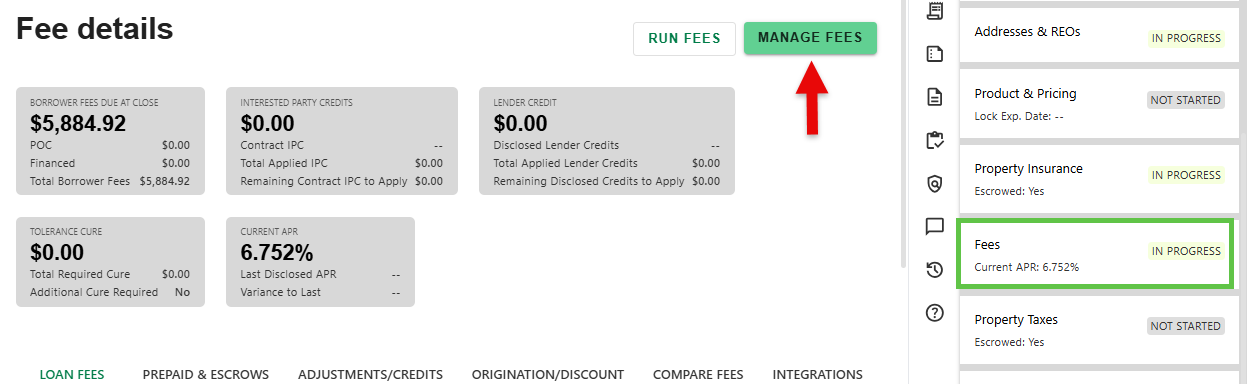
Step 1: Click Manage Fees Button
- On the Fees Progress Item details screen, click the 'MANAGE FEES' button.
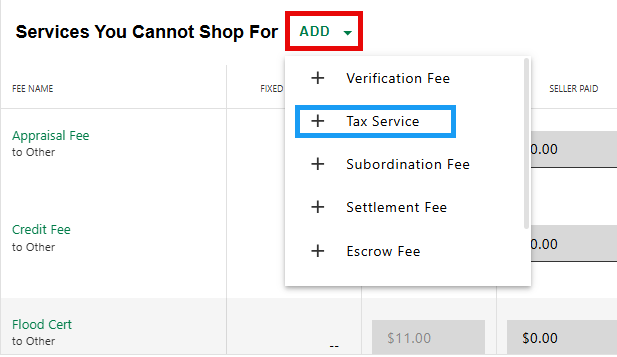
Step 2: Click Add to Select Fee
- Click 'ADD' in the appropriate section. Select the new fee from the list.
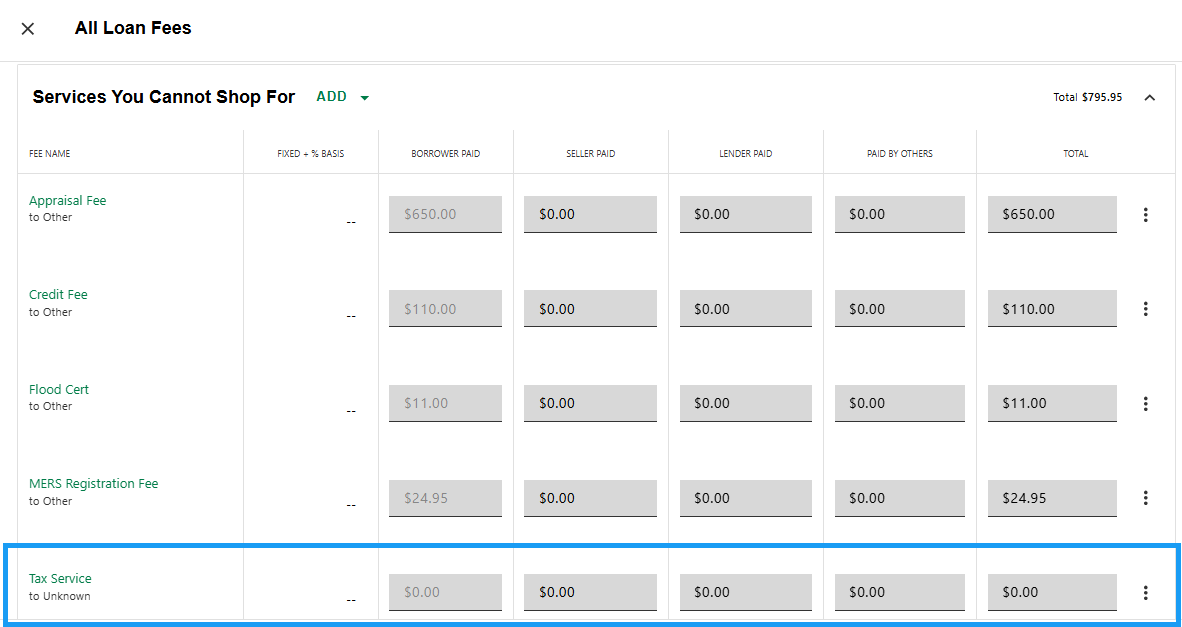
- The new fee will appear at the bottom of the section.
Step 3: Enter and Allocate Amount
- Enter the total fee amount to the 'TOTAL' field on the right. The total will default to 'BORROWER PAID'.
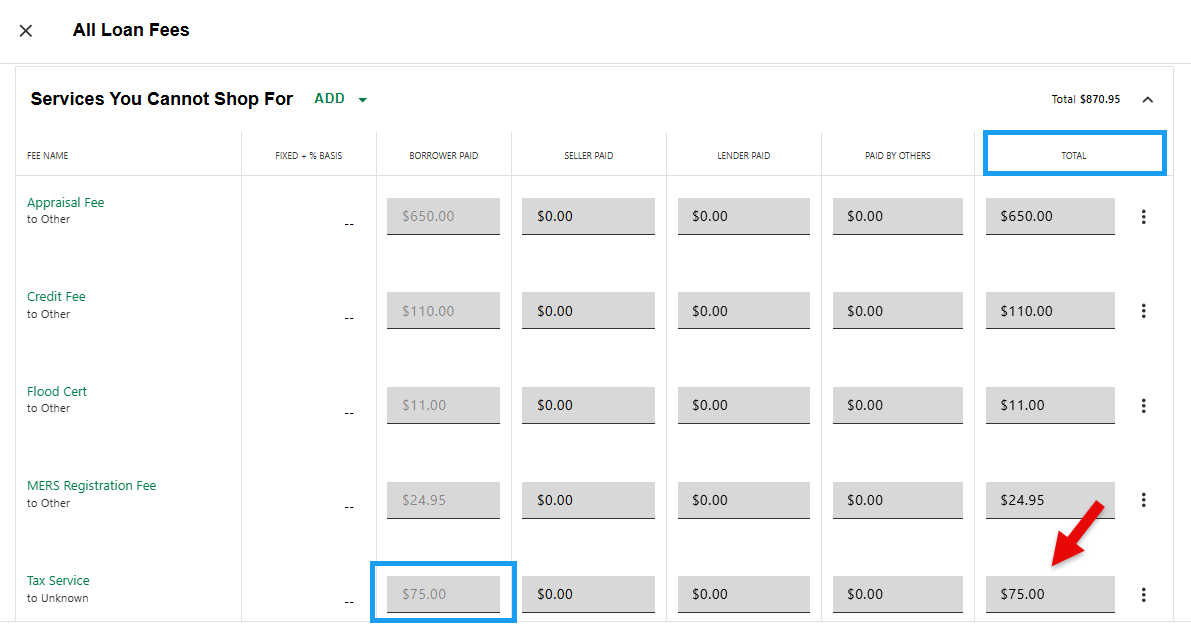
- Allocate the total by payee. If someone other than the Borrower is paying all or a portion of the fee, the borrower amount will recalculate according. The amount can be split among multiple payors.

Step 4: Manage Details
- Click on the Fee Name to add details including timing of payments, payee information, payment date and view fee characteristics (editable by permission).

Step 5: Delete Fee
- Click on the three dots to the right of the total field. Click on the Delete box that pops up.

Step 5: Update Fees
- Once done, click the Update Fees button to add the new fee and return to the main Fees screen.

If the new fee does not appear on the list, reach out to your admin for assistance.
Was this article helpful?
That’s Great!
Thank you for your feedback
Sorry! We couldn't be helpful
Thank you for your feedback
Feedback sent
We appreciate your effort and will try to fix the article