Managing borrower assets is a key part of ensuring accurate loan processing. In the Asset Progress Item, you can easily review, update, and add asset accounts, as well as track how much has been verified versus what is required.
Instructions to Manage Assets in the Assets Progress Item
Step 1: Navigate to the Assets Progress Item
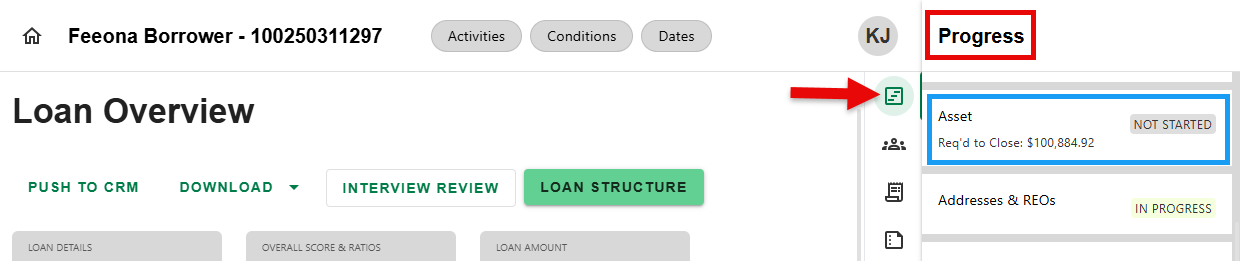
- From any screen, navigate to the Progress Item Sidesheet and select the Asset Progress Item.
Step 2: Understand the Info Boxes
- At the top of the Asset Progress Item screen, there are Info Boxes to help track asset verification.
- Required Assets: How much is needed for the loan.
- Verified Assets: How much has been documented and verified.
These dynamically update as account information is entered or verified. 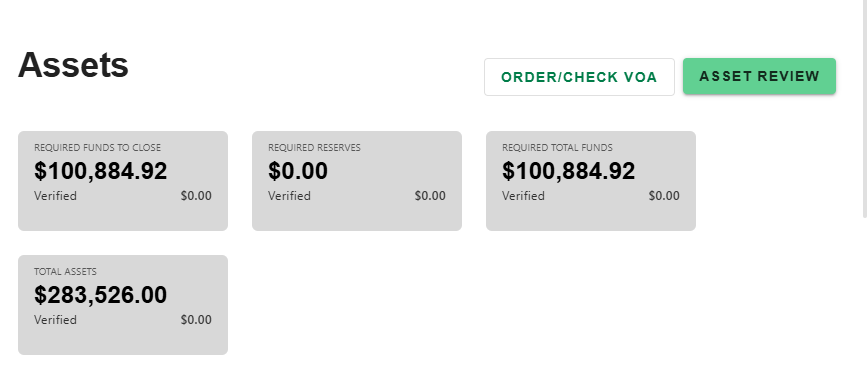
Step 3: Review Purchase Calculations, if applicable
- If the loan purpose is Purchase, there will be a Purchase Calculations box with a summary of the required down payment amount, minimum required investment and the maximum interested party contribution amount, all per loan program guidelines.

Step 4: Review Asset Accounts
- All reported asset accounts are listed in the 'DETAILS' Tab. Summary sections will display dynamically if an asset type exists. For example, this loan has a deposited gift. The Gift and Other Assets section only appeared because there is a gift.
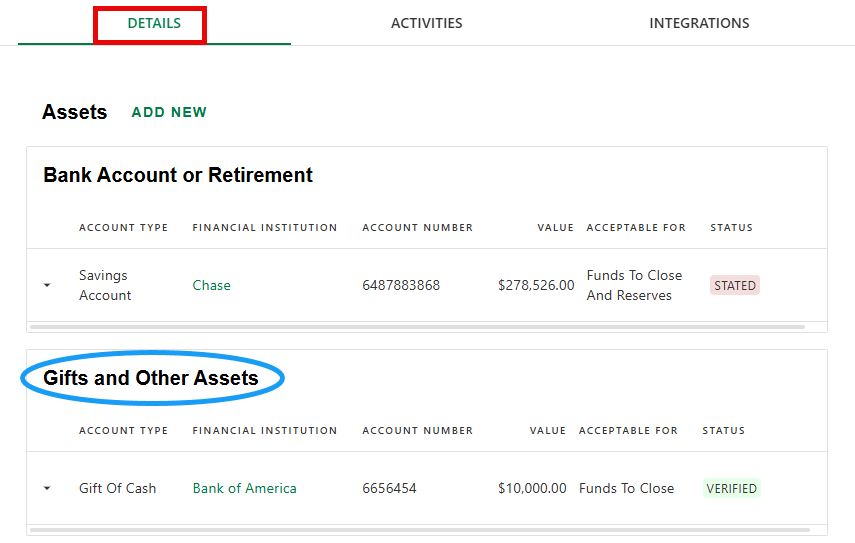
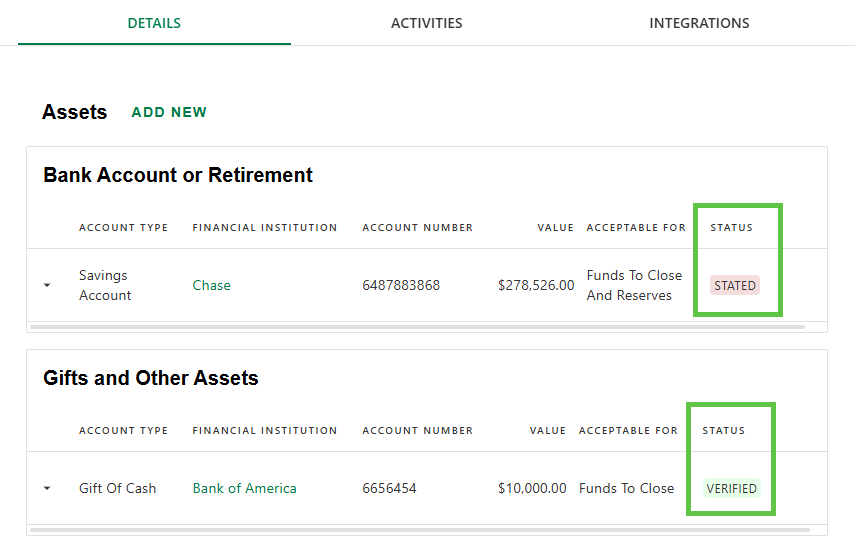
- The 'STATUS' of each asset is displayed in the summary sections on this screen.
Step 5: Edit Assets
- To edit or view details of an asset, either click on the name of the 'FINANCIAL INSTITUTION' or the Edit icon that appears by hovering to the right of the 'STATUS'.
- Note - the Delete icon is also accessible by hovering to the right of 'STATUS'.
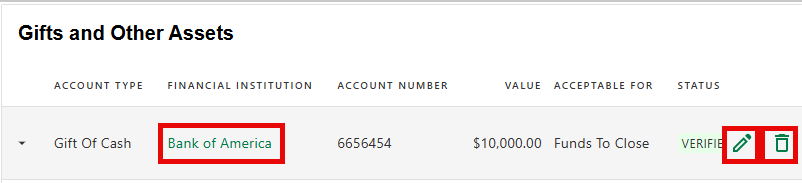
- Note - the Delete icon is also accessible by hovering to the right of 'STATUS'.
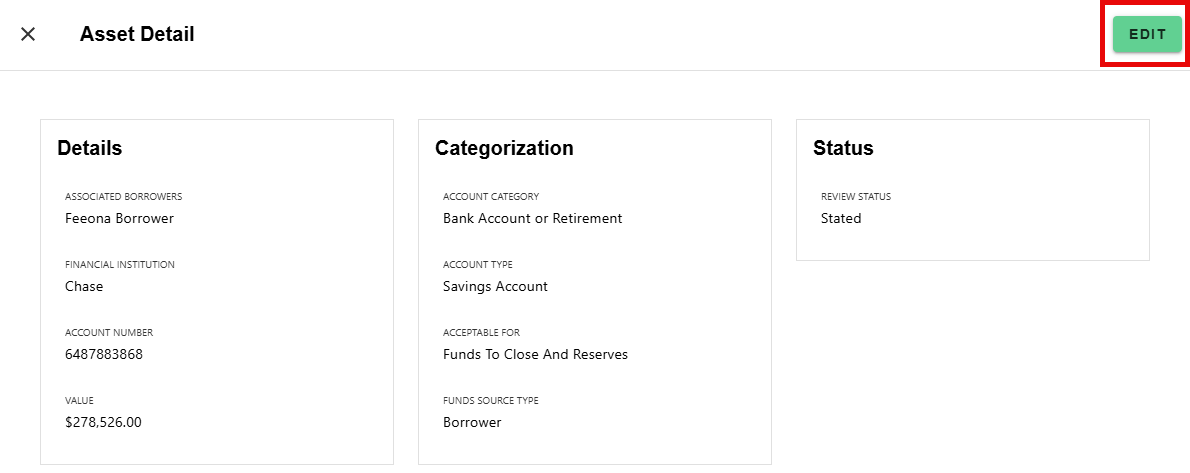
- Click 'EDIT' on the Asset Detail screen to make updates. When done select 'SAVE' to apply changes or 'DISCARD' to cancel.

Step 4: Add Assets
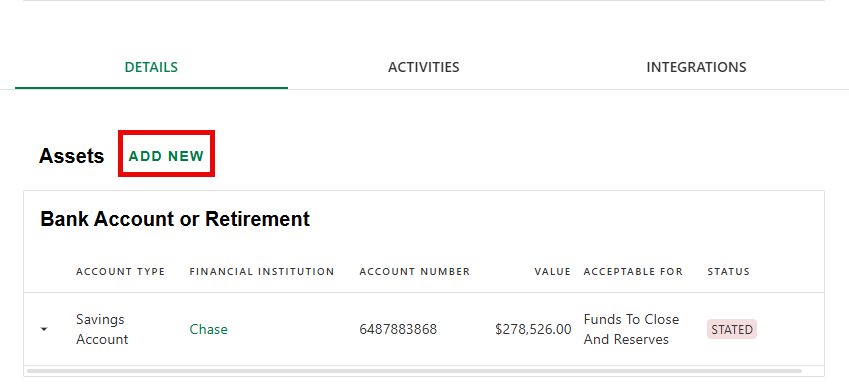
- To add an asset, click 'ADD NEW'.
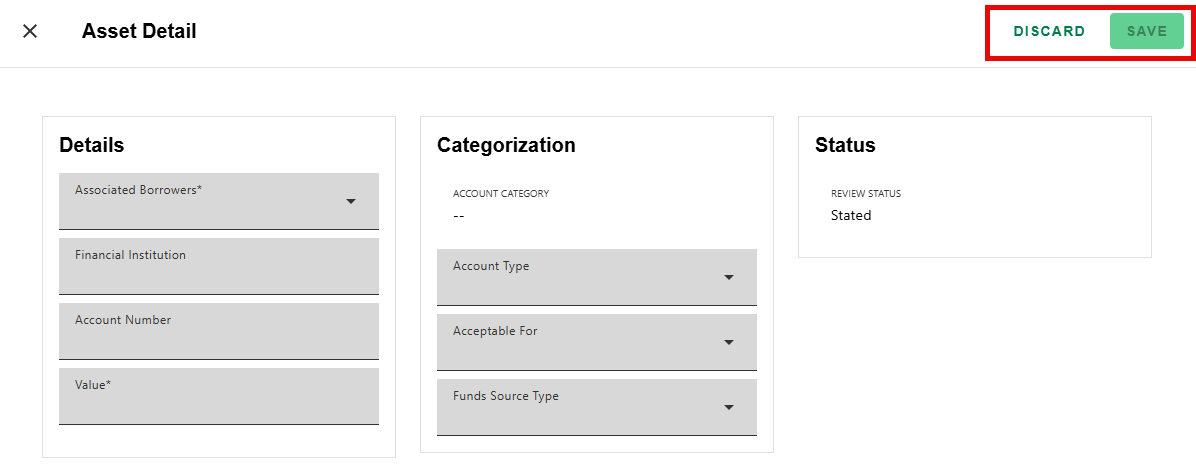
- Enter the details of the account on the Asset Detail screen. When done select 'SAVE' to apply changes or 'DISCARD' to cancel.
Step 7: Use the Asset Tools
- Order/Check VOA: Click this button to order or check a third-party Verification of Assets (VOA).
- Asset Review: Opens a checklist-driven interface to validate asset sources and documentation.
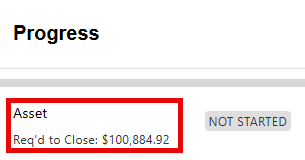
The Asset Progress Item always shows the total amount of Required Funds to Close for an at-a-glance number without having to view the details screen.
Was this article helpful?
That’s Great!
Thank you for your feedback
Sorry! We couldn't be helpful
Thank you for your feedback
Feedback sent
We appreciate your effort and will try to fix the article