Complete MERS registration in Charlie efficiently using the MERS Progress Item.
Instructions to Utilize MERS Progress Item
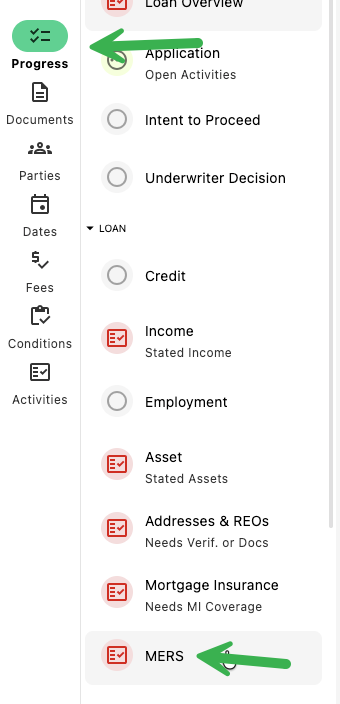
Step 1: Navigate to MERS Progress Item
- From any screen, navigate to the Progress Item sidesheet and select MERS.
Step 3: Run MERS Registration
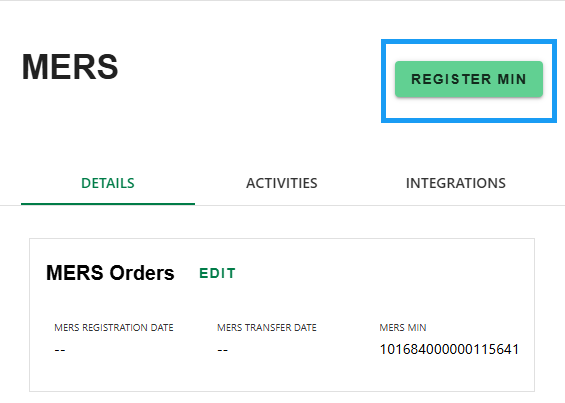
- Click 'REGISTER MIN' button.
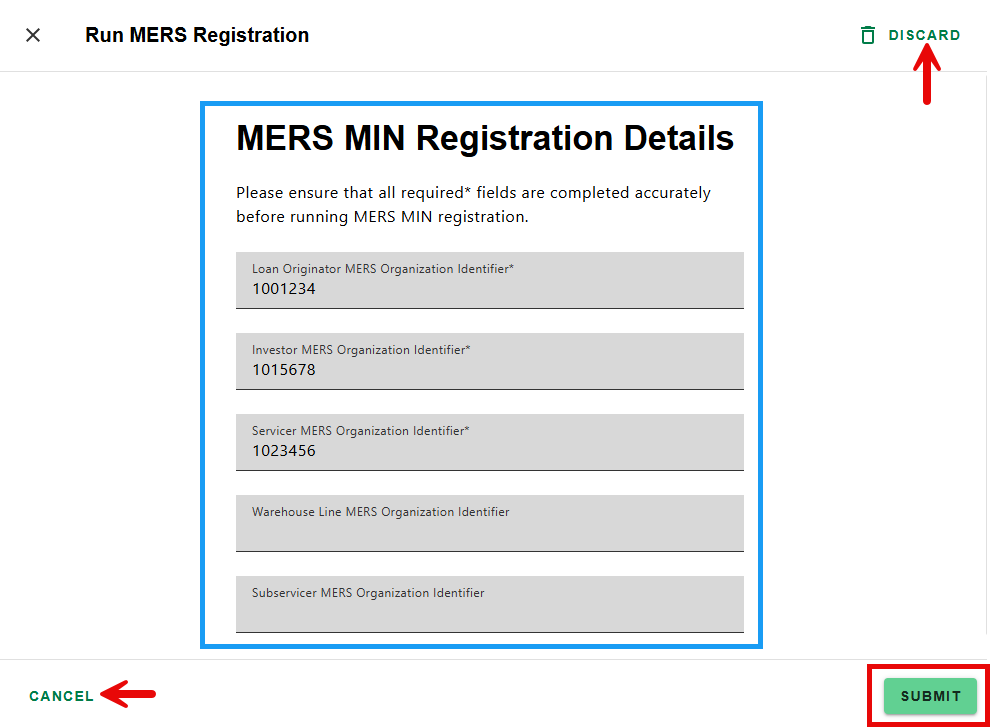
- Review to ensure all required fields are complete. If information is missing, contact your admin. Click 'SUBMIT' to initiate the registration with MERS. To go back to the previous screen, select 'CANCEL' or 'DISCARD'.
Step 3: Add Dates
- Click 'EDIT' in the MERS Orders section of the MERS Progress Item detail screen to add tracking dates:
- MERS Registration Date
- MERS Transfer Date
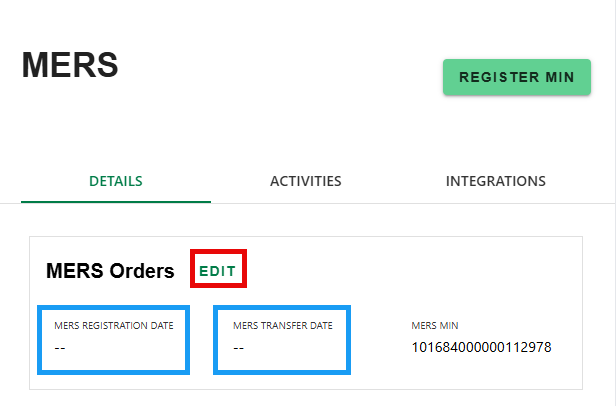
- Once done, select 'SAVE' to apply dates or 'DISCARD' to cancel the changes.
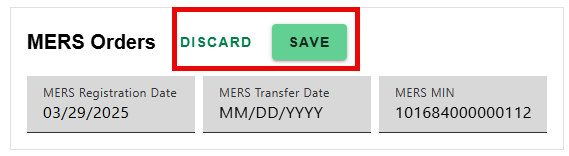
The MERS MIN is generated when the loan is created and the loan number is assigned.
Was this article helpful?
That’s Great!
Thank you for your feedback
Sorry! We couldn't be helpful
Thank you for your feedback
Feedback sent
We appreciate your effort and will try to fix the article