How to Create a New Loan
1. In this guide, we’ll walk through how to create a new loan in Charlie.
You can start by running a quick loan scenario to calculate estimates, or create a full loan file right from the home screen.

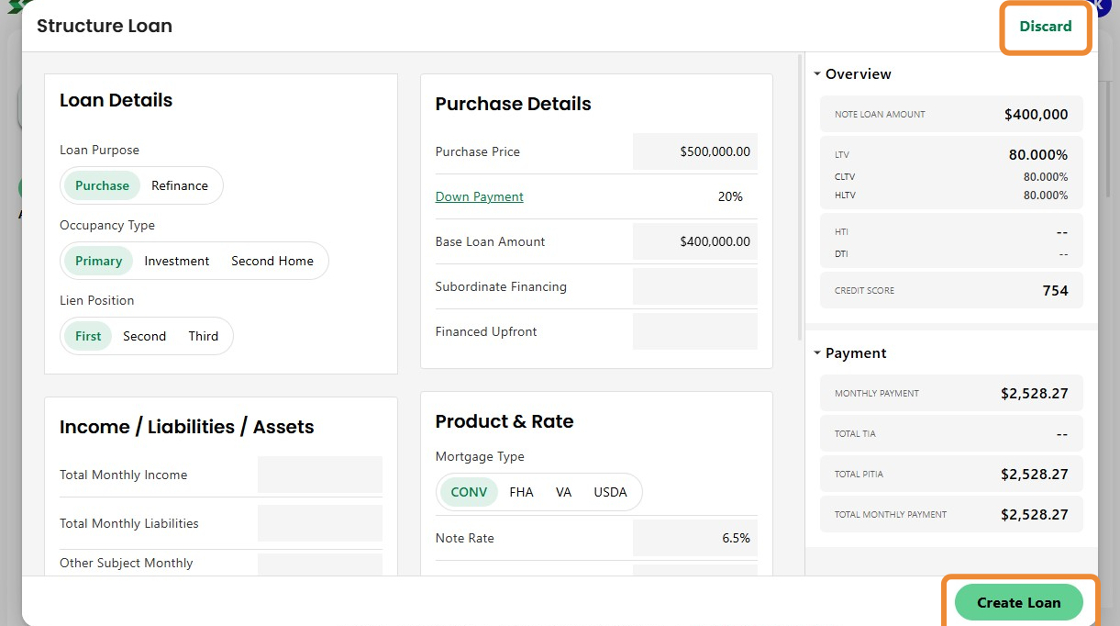
2. From your Pipeline view, click Structure Loan to open the quick structure calculator.
This option is perfect for testing loan scenarios, before creating a full file.

3. Enter your scenario details, like purchase price, down payment, occupancy type, income and note rate.
Charlie will calculate key values like LTV, CLTV, DTI, and monthly payment based on your inputs.

4. Once you’re done, you can either click Discard to close the quick calculator or click Create Loan to convert the scenario into a full loan.
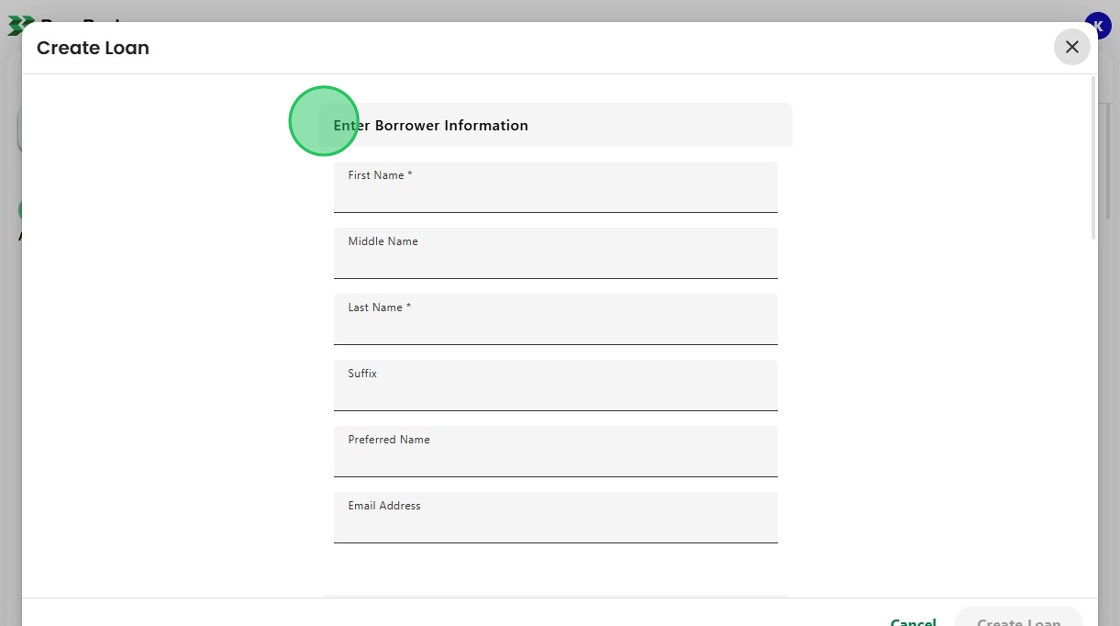
5. If you choose to create a loan, enter borrower and property information to generate a new loan file and assign a loan number.
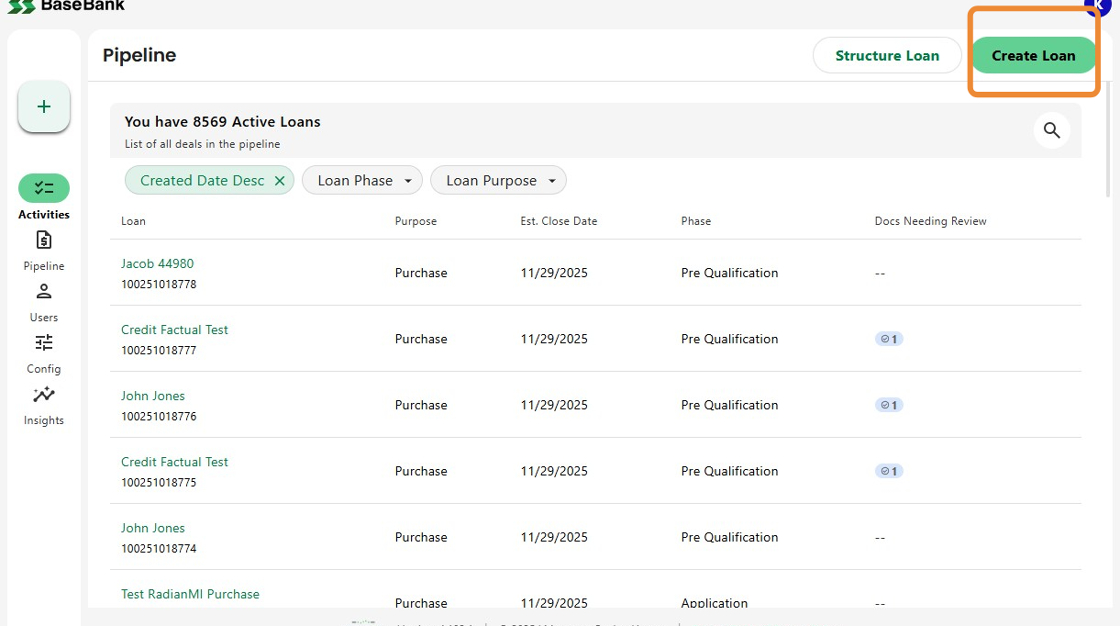
6. You can also start a new loan directly from the home screen.
Just click the Create Loan button at the top right.
7. Enter basic borrower, property, and transaction information, then click Create Loan to confirm.

8. After creating the loan, Charlie will take you to the Continue Your Borrower’s Application screen.
From here, choose what you’d like to do next. Structure the loan, invite or add a borrower, review the URLA, order credit or product & pricing, or go straight to the main loan screen.

Was this article helpful?
That’s Great!
Thank you for your feedback
Sorry! We couldn't be helpful
Thank you for your feedback
Feedback sent
We appreciate your effort and will try to fix the article