How to Add a Party
1. This guide will walk through how to manually add a party in Charlie.
Parties are added automatically when you order services, but you can also add them manually whenever needed.

2. Parties can be managed directly within the workflow of their related activities.
Here, we’ll use property insurance as an example.
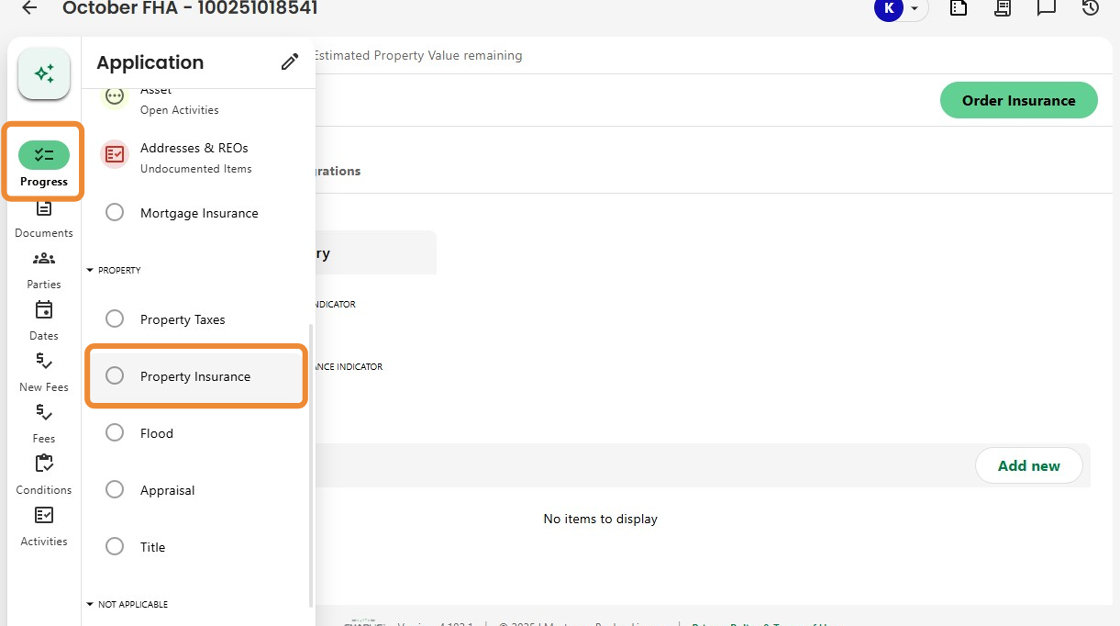
3. From the Property Insurance Progress Item, click Order Insurance to open the activity screen.

4. From here, you can edit or delete existing agents, or click Add New to create a new party.

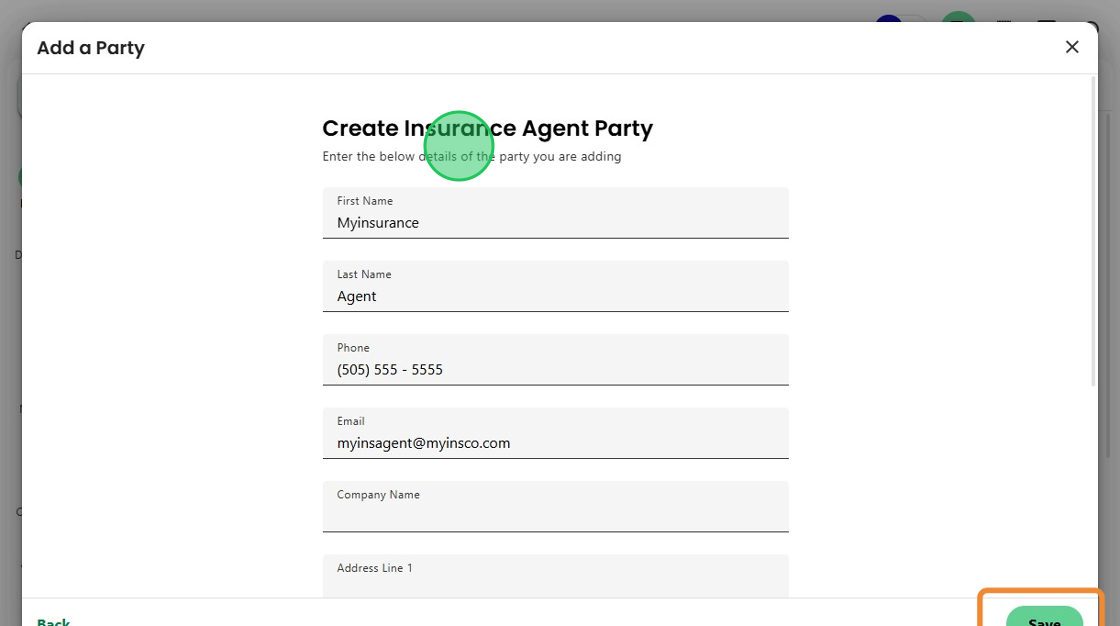
5. The Add a Party window opens with all the fields you need for that party type.
Enter the details then click Save.

6. The agent party information appears in the activity, allowing you to continue with the order.

7. You can also add a party at any time using the Quick Actions icon on the left side panel.
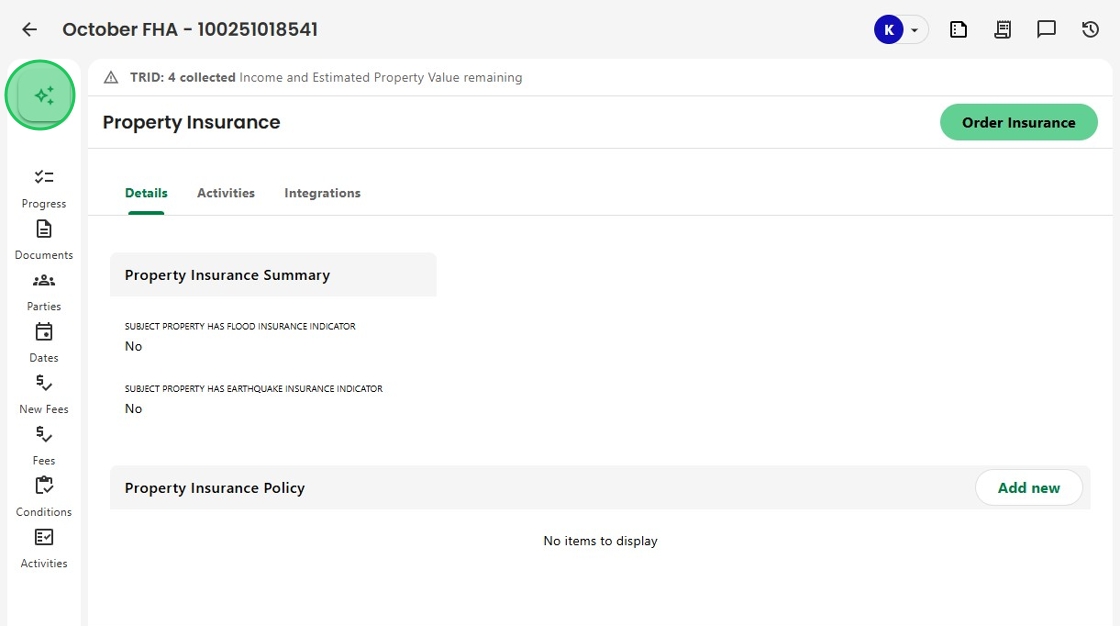
8. From the Quick Actions menu, select Add Party.

9. Choose the appropriate Party Type from the dropdown, then click Next.

10. Enter the details of the party you are adding and Save.
11. Once saved, click the Parties icon in the side menu to see all parties associated with the loan.
You’ll see the new party listed here, simply click to view or edit their details.

12. Any parties added through Quick Actions will automatically carry over to all related activities within the loan file.

Was this article helpful?
That’s Great!
Thank you for your feedback
Sorry! We couldn't be helpful
Thank you for your feedback
Feedback sent
We appreciate your effort and will try to fix the article